
Audience: Administrators
Overview
Salesforce is a cloud-based software company that provides customer relationship management service. OrgChart allows for Salesforce to be directly connected as a main data source in creating organizational charts.
FAQ
-
How do I set up my connection to Salesforce?
Reference the Salesforce Connector Setup article below.
-
Can I limit the fields that a use is able to pull from Salesforce?
Yes. Reference the Salesforce configuration section for more information.
-
What fields can I pull from Salesforce?
You can pull any fields associated with the base object that you query in Salesforce. Verify with your Salesforce system administrator that your designated OrgChart Service User has permissions to query the fields you are trying to pull.
-
Can I merge data from a secondary source with Salesforce data?
Yes. For example, you can include open requisitions in your org chart from a number of external systems including Greenhouse, iCIMS, and Jobvite.
-
Can I embed org charts (generated from Salesforce data) into my intranet?
Yes. You can embed live charts into your intranet - these charts can be set to auto-sync from Salesforce. Set and forget.
-
Can I add open requisitions from Salesforce into my org charts?
Yes. Depending upon your org's data setup within Salesforce, it is possible to query open requisitions. Contact OrgChart Support for more information.
-
Can I filter which records are included in my org charts?
Yes.
Salesforce Configuration
This section provides step-by-step instructions for configuring a Salesforce connector.
CONFIGURING A SALESFORCE CONNECTOR
OrgChart requires a valid Security Token to directly integrate with Salesforce. Retrieve a valid Salesforce Security Token by following these steps:
-
Log in to Salesforce.
-
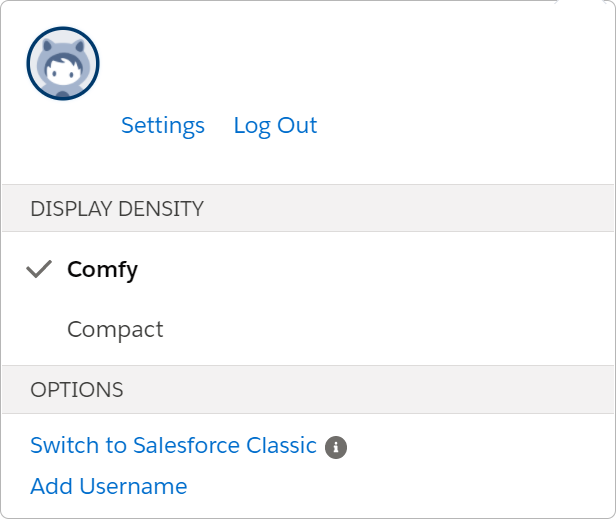
Click on your profile icon, and then click on Settings.
-
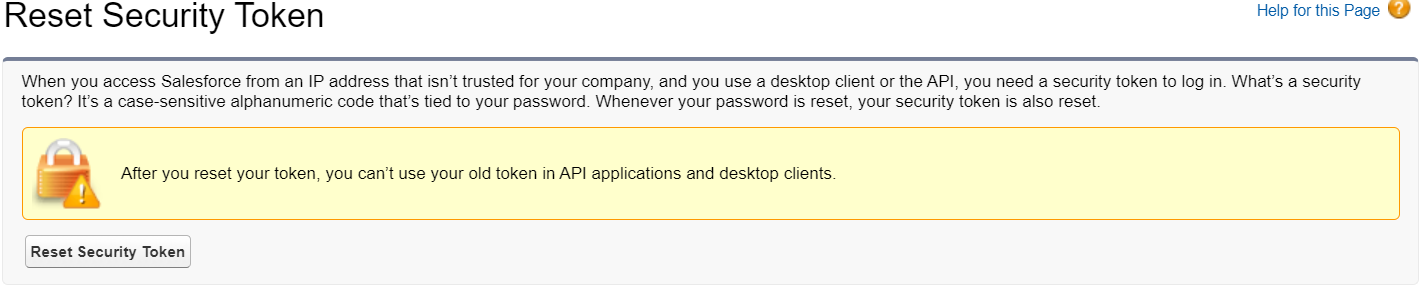
Click on the Reset Security Token options (under My Personal Information) in the left-hand side panel.
-
Click on the Reset Security Token button. A case-sensitive alphanumeric code is sent to the email address associated with the admin login used to reset the token.
-
Copy the newly regenerated Security Token, and paste it in a separate document.
Defining a Search Query
OrgChart uses SOQL (Salesforce Object Query Language) to search your organization's Salesforce data for specific information.
Administrators must define a search query in order to pull employee data from Salesforce. Before defining a search query, Administrators must know the following:
-
From which Salesforce Object to pull the data
-
Which Fields (associated with that Salesforce Object) to query
The following section provides step-by-step instructions for building a SOQL Search Query.
Locating the Salesforce Object and Data Fields
-
Log into Salesforce.
-
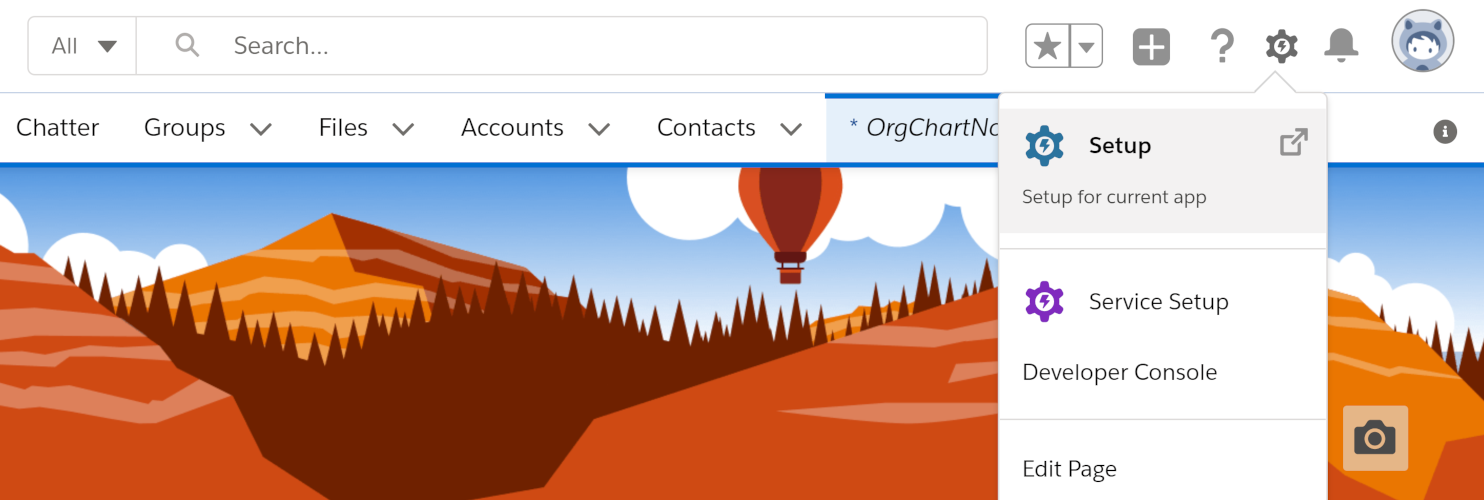
Click on the Gear icon (in the upper-right corner, and then click on Set Up.
-
Click on the Home tab (if not already open), and then click on the
 to the right of the Objects and Fields option (under the Platform Tools heading).
 -
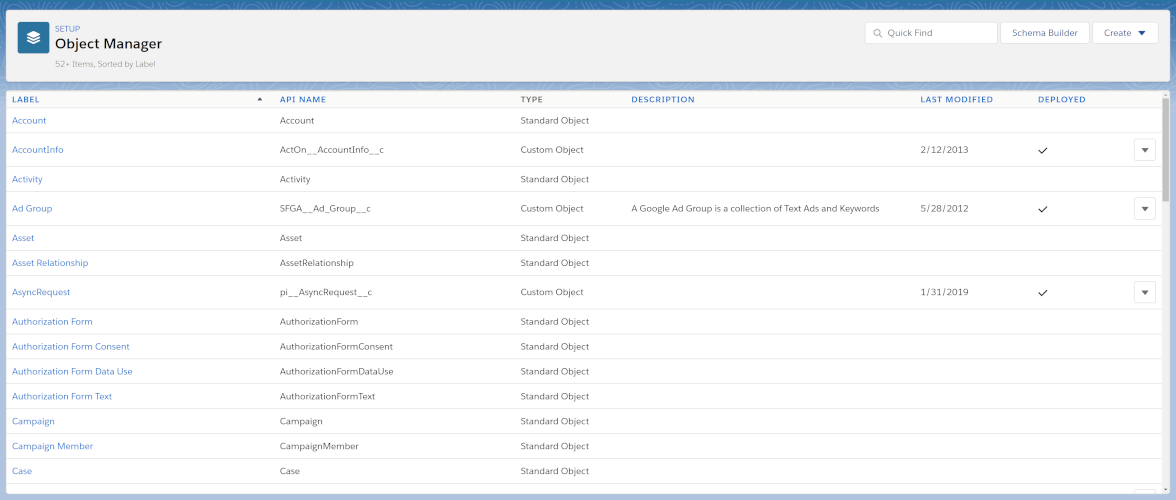
Select the Object Manger option. The Object Manager is displayed:
-
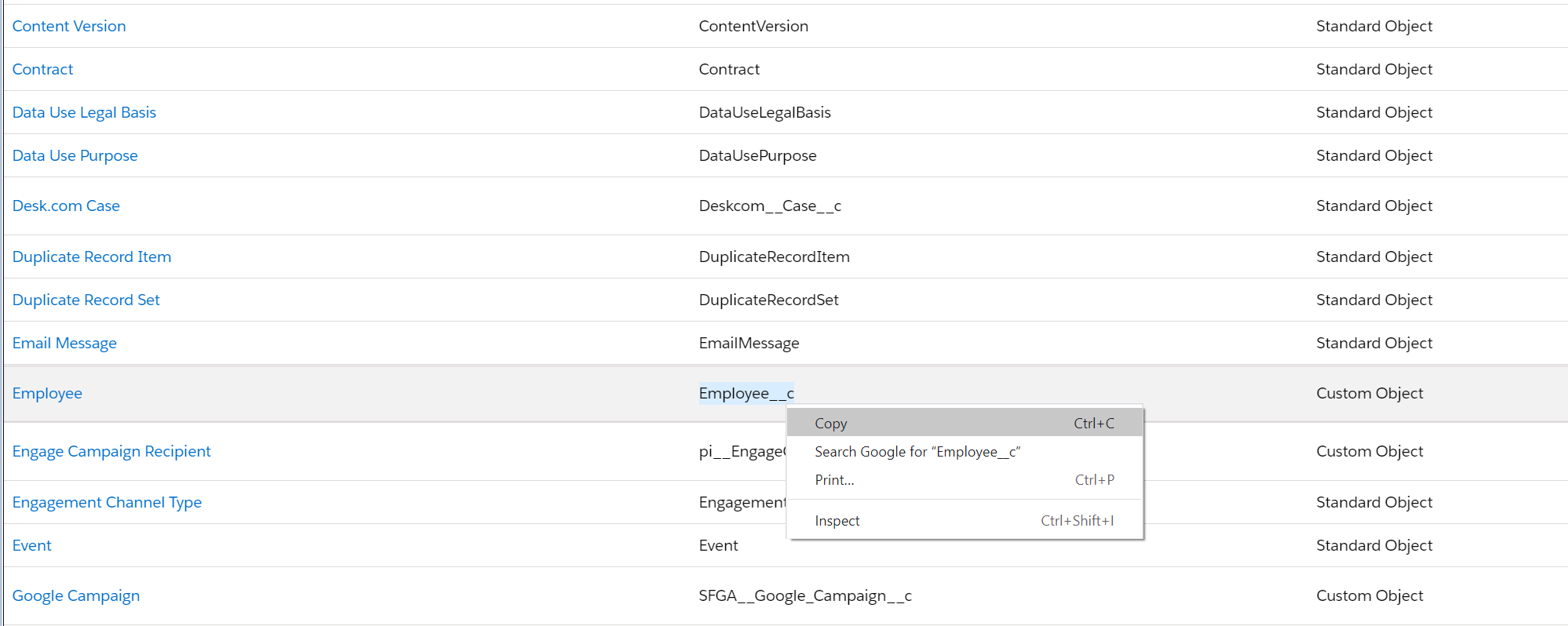
Locate the Object from which you would like to pull employee data.
Note
The Object Label, and the Object API Name might be different.
-
Copy the Object's API Name (as shown below), and paste it in a separate document. You will need the Object's API Name when building the SOQL Search Query.
-
Click on the Blue Label associated with the Object from which you would like to pull employee data. The Object's Details are displayed.
-
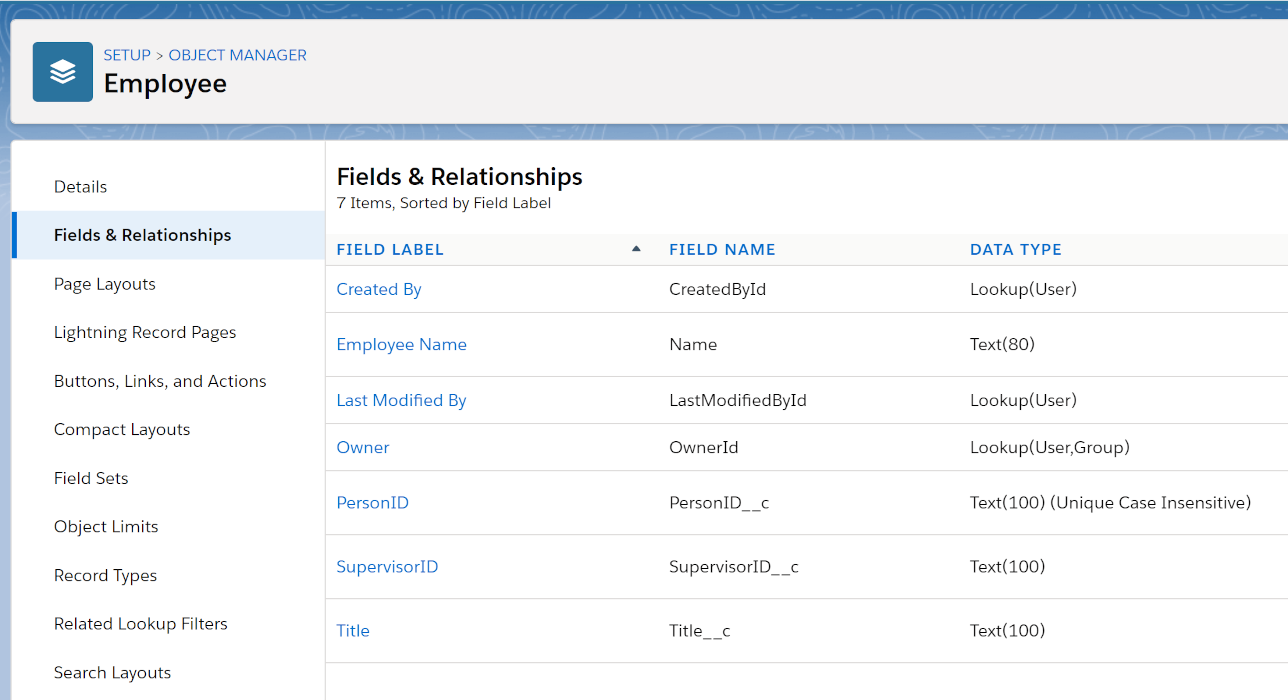
Click on the Fields & Relationships option located in the left-hand panel. The Object's Fields & Relationships are displayed.
Note
The Field Label and Field Name might be different. -
Copy the FIELD NAME of the fields you'd like to pull from this Salesforce Object, and paste them into a separate document.
Note
To successfully import data from Salesforce, you must query fields that meet the following criteria-
Employee Name
-
Employee job title
-
ID number associated with an Employee
-
ID number associated with an Employee Supervisor
-
Building the Search Query in OrgChart
Administrators must define the Search Query that will allow OrgChart to pull employee data from Salesforce. Use the following SOQL SELECT syntax when constructing this query:

Note
SOQL Search Queries vary by Salesforce instance, but the SOQL SELECT Syntax and process of identifying Salesforce Objects and Fields remains the same.
To enter this query in OrgChart, please follow steps in Salesforce Connector Setup section, and then do the following:
-
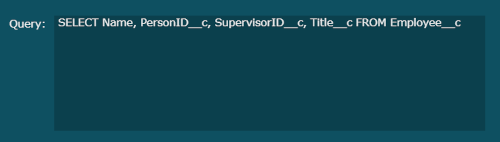
In the Query text box, write SELECT, and then paste the FIELD NAMES (separated by commas).
-
Write FROM followed by the Object's API NAME.
The following screenshot is an example Query:
Setting up a Salesforce Connector
OrgChart uses a REST API to directly connect to Salesforce, and pull employee data from Salesforce objects. The following article provides step-by-step instructions for setting up a Salesforce connector.
1. Click on the Settings button in the bottom right corner, and then select the Chart Settings option from the list.

2. The Data sources panel is displayed. Under the Main data sources heading click on connector icon and then click on Salesforce connector.

3. Provide enter the following information into the corresponding textboxes:
-
Username - Username of the administrator account used to reset the Security Token
-
Password - Password of the administrator account used to reset the Security Token
-
Token - Provided in email after resetting Security Token in Salesforce
-
Sandbox checkbox - Check if you are using Salesforce as a sandbox environment
4. Enter the Search Query (unique to your Salesforce instance) in the Parameters text box. Reference the Salesforce Configuration section for more information.

5. Click on Save & Refresh
Comments
0 comments
Please sign in to leave a comment.