
Audience: All users
Overview
Greenhouse is an Applicant Tracking System used to manage open requisitions throughout the recruitment process. You can supplement your main data source with open requisitions pulled directly from Greenhouse.
The following article provides information on:
- Setting up your Greenhouse account for OrgChart integration
- Setting up your Greenhouse integration in OrgChart
Setting up your Greenhouse account for OrgChart integration
- Log in to Greenhouse.
- Navigate to Configure (the gear icon on the top right) > Dev Center > API Credential Management.
-
Click on the Create New API Key button. The Create New Credential dialog is displayed.
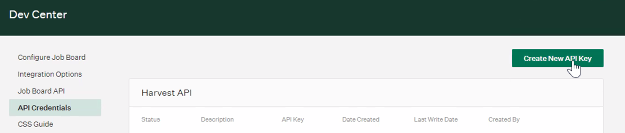
- Click on the API Type dropdown menu, and then select the Harvest option.
- Enter OrgChart API in the Description text box.
- Click on Create. The API Key is displayed.
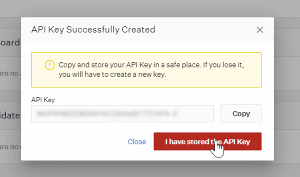
- Copy the API Key, and then paste it on a Notepad document.
-
Click on the I have stored the API Key button.
- Click on the Manage Permissions button.
- Set permissions as follows:
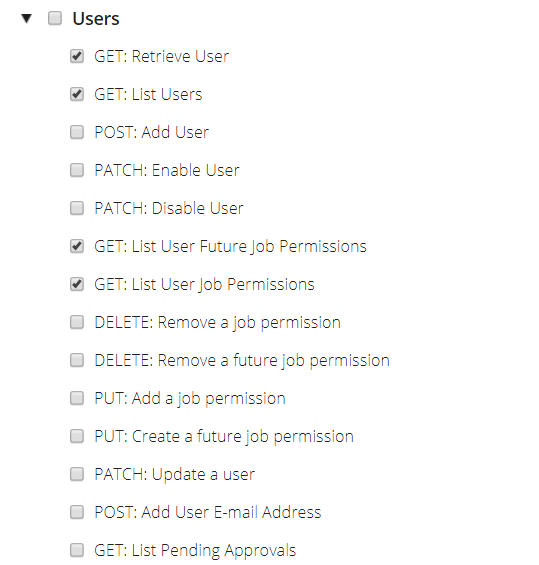
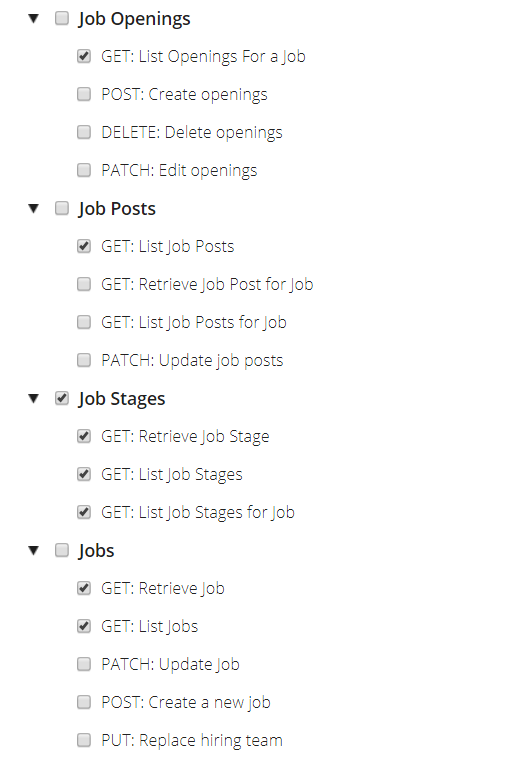
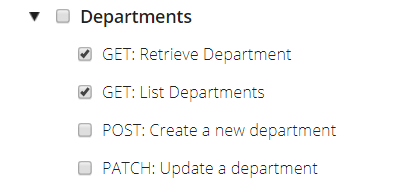
11. Click on the Save button (at the bottom of the Manage Permissions list).
Setting up a Greenhouse integration in OrgChart
1. Click on the Settings button in the bottom right corner, and then select the Chart Settings option from the list.

2. The Data sources panel is displayed, under the Append Data sources click on Add data source button.

3. Click on the Greenhouse icon.

4. Paste the API token copied from the Greenhouse Configuration steps in the API Token field.
5. Optionally, click on the Statuses dropdown menu, and then select to pull greenhouse records with a specific status. By default, only Open records are pulled. However, OrgChart supports users pulling records that are Closed or Draft.
6. Click on the Email dropdown menu, and then select the name of the Email field used in your main data source.
7. Optionally check the Separate boxes for each open job requisition checkbox to display a box for each available opening listed under the same requisition ID. For example, if one open job requisition lists 5 available positions, OrgChart will generate 5 separate open requisition boxes.
8. Click on Save.
9. Click Save and Refresh.
Comments
0 comments
Please sign in to leave a comment.