
Audience: Administrators and read/write users Edition: Plus, Pro, Premium, and Enterprise
Overview
Functional charts (also known as placeholder charts ) allow you to display system-generated boxes that describe the functions of an organization. For example, rather than just displaying the employee hierarchy of the company, administrators can display placeholders, which employees will roll up to based on the field-defined function (i.e. Department).
The following article provides information on:
Creating a functional chart
Administrators can create functional charts in the Chart Settings: Data sources panel.
1. Click on Settings, and then click on the Chart settings option.

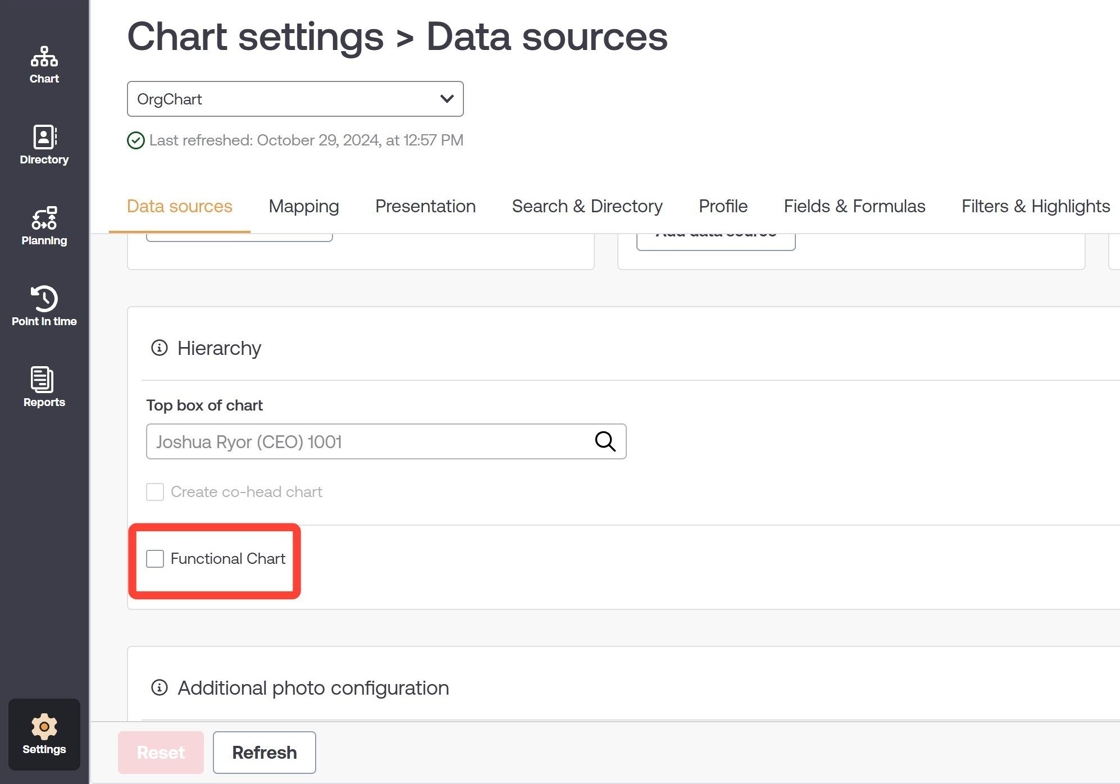
2. On the base chart that you'd like to make a functional chart, check the Functional Chart checkbox under the Hierarchy heading.
3. Click on the Function 1 dropdown, and then select a field from your dataset (i.e Department Name) that you would like to use to generate functional placeholders.
4. Optionally, add up to three functions to create a multi-layer functional chart.
5. Click on Save and then Refresh.

6. Open the base chart that you configured as a functional chart. The base char now contains placeholder boxes for the function(s) that you selected.
Base chart WITHOUT functional chart
Base chart WITH functional chart
Applying box styles to functional placeholders
When creating a functional chart, you may want the placeholder boxes that are generated to have a different styling from the other boxes in your chart.
The following section provides information on how to apply a different box style to the placeholder boxes, which are generated after creating a functional chart.
1. Click on the View rules button, and then click on the edit icon to start editing the view.

2. Click on +Add rule. The rule editor is opened.

3. Define the basic rule criteria for applying the new box style. Placeholders can be targeted by using the field 'ObjType' and the value 'Function' (as seen below).
4. From the box style tab in the rule editor (available when Employee box tab is active), select the box style you would like to apply to the placeholder boxes. Then, click on Save.
5. The rule is added to the list of rules for the selected view, and the box style is now applied to the function (placeholder) boxes. Click on the checkmark to save your changes.

Comments
0 comments
Please sign in to leave a comment.