
Audience: All users
Overview
OrgChart allows for the option to sign in directly to the application by using an email and password. The steps for creating a first time password to login to the app and the steps to reset your password are the exact same.
First time log in
Logging into your OrgChart environment for the first time will be the exact same steps as resetting your password. Please follow the steps below in order to create your first time login password.
Note
If you do not know which server or domain your OrgChart account is on, please reach out to your account administrator to give you the domain name.
The email address you input when selecting Reset Password will need to be the exact email your administrator has provisioned for your user within the application. Please reach out to your account administrator if you do not know which email they have provisioned for your user.
Resetting Password
1. Navigate to your organization's OrgChart domain (i.e.https://na7.theorgchart.com/).
2. Click the "Reset password" prompt.

3. Click the "Email address" field and enter in the email address associated with your OrgChart user.
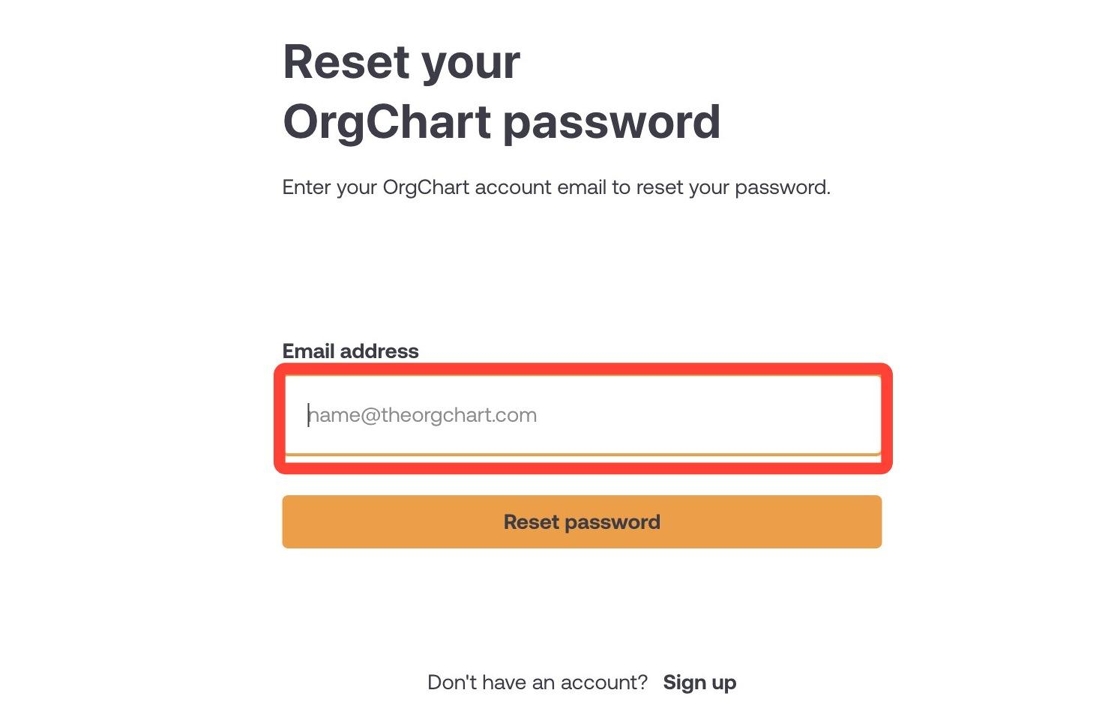
4. Once you enter in your email address, press "Reset password." Instructions will be sent to this email address detailing how to reset your password.

5. Enter your newly created password in the "Password" field.

6. Sign in to your OrgChart account.

Resetting your password while logged in
All users can also change their password within the application.
1. Sign into your OrgChart environment (i.e. https://na7.theorgchart.com/app/chart).
2. Click on your profile icon in the top right corner of the app.

3. Select "Change password."

4. Make sure your new password meets the criteria described and then confirm new password.

5. Select "Change Password" after completing.

6. After this is complete, you can now sign in with your newly created password.

Comments
0 comments
Please sign in to leave a comment.