
Audience: Administrators and read/write users Edition: Pro
Overview
Custom charts are charts that are created using your base chart data. Custom charts allow Administrators and Read/Write users to make on-demand changes to position or employee data, chart formatting, and branch styles. Changes made to a custom chart are tracked in the Changes panel, so users can audit the manual adjustments that they've made.
Creating a custom chart
1. Click on Edit, and then click on the Create custom chart option.

2. Under the Which position would you like at the top of this custom chart option, click on the search box, and then search for the position that you would like to be at the top of your custom chart. You can search by position title or employee name.

3. Click on the dropdown under the How may levels under this position would you like to include option, and then choose how many levels beneath the selected top position you would like to include in the custom chart.
4. Optionally, click on the pencil icon to add a filter to the custom chart, so that you can focus the chart on specific positions, departments, or other criteria. You can also apply a custom chart filter later.
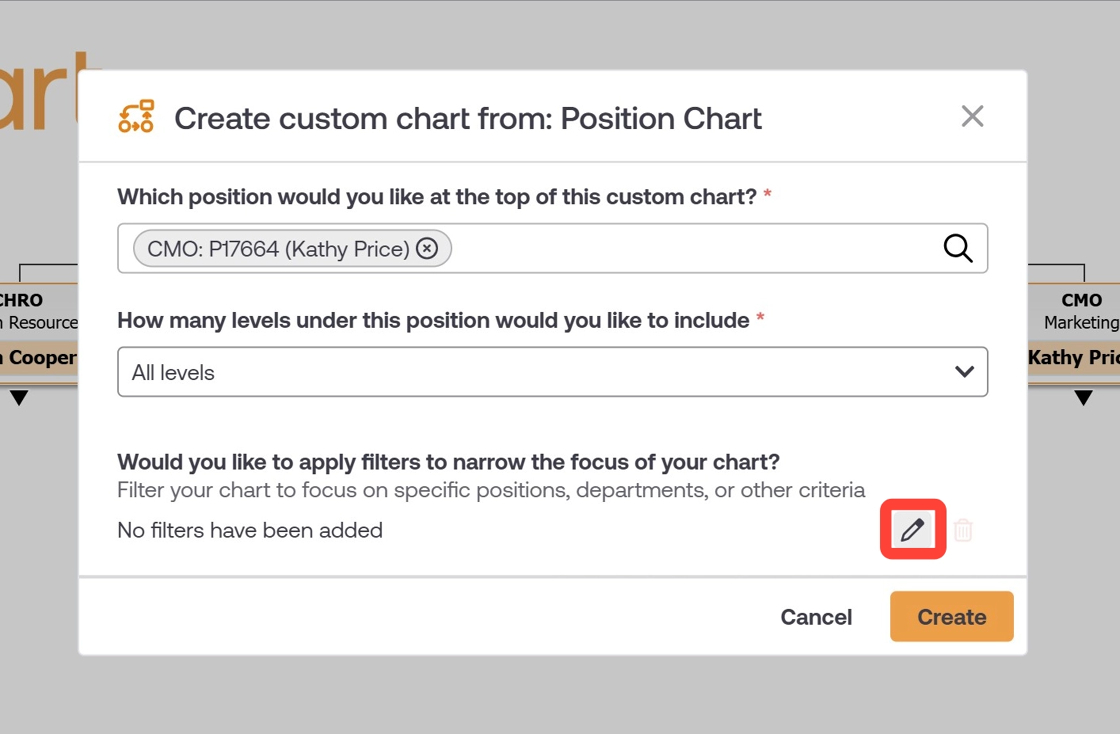
5. Click on Create.

6. The custom position chart is created.

Note
For more information, reference the article on editing a position-driven custom chart.
Comments
0 comments
Please sign in to leave a comment.