
Audience: Administrators
Overview
Paychex is a Human Resource Management solution for small to medium-sized businesses. OrgChart can connect directly to Paychex. The following is a list of frequently asked questions pertaining to Paychex's compatibility with OrgChart.
FAQ
-
How do I set up my connection to Paychex?
Select the following section to set up a Paychex connection.
-
Can I pull photos from Paychex into my org charts?
No.
-
Can I limit the fields that a user is able to pull from Paychex?
No. At this time fields can not be limited at the API level. You can still block certain fields from being pulled into OrgChart by applying a Limit Fields Import Filter.
-
What fields can I pull from Paychex?
OrgChart can pull most fields associated with an Employee's profile. Reference the Paychex Fields section below for more information.
-
Can I merge data from a secondary source with Paychex data?
Yes. Reference the Merge Data Connectors article for more information.
-
Can I embed org charts (generated from Paychex data) into my intranet?
Yes.
-
Can I filter which records are included in my org charts?
Yes. You can filter which records and fields are imported into OrgChart using Import Filters. Reference the Import Filters article for more information.
Configuring a Paychex Connector
The following section provides step-by-step instructions for configuring a Paychex connector.
- Sign in to Paychex.
-
Click on the Menu button (in the top left corner), and then select the Company Settings option from the dropdown menu.
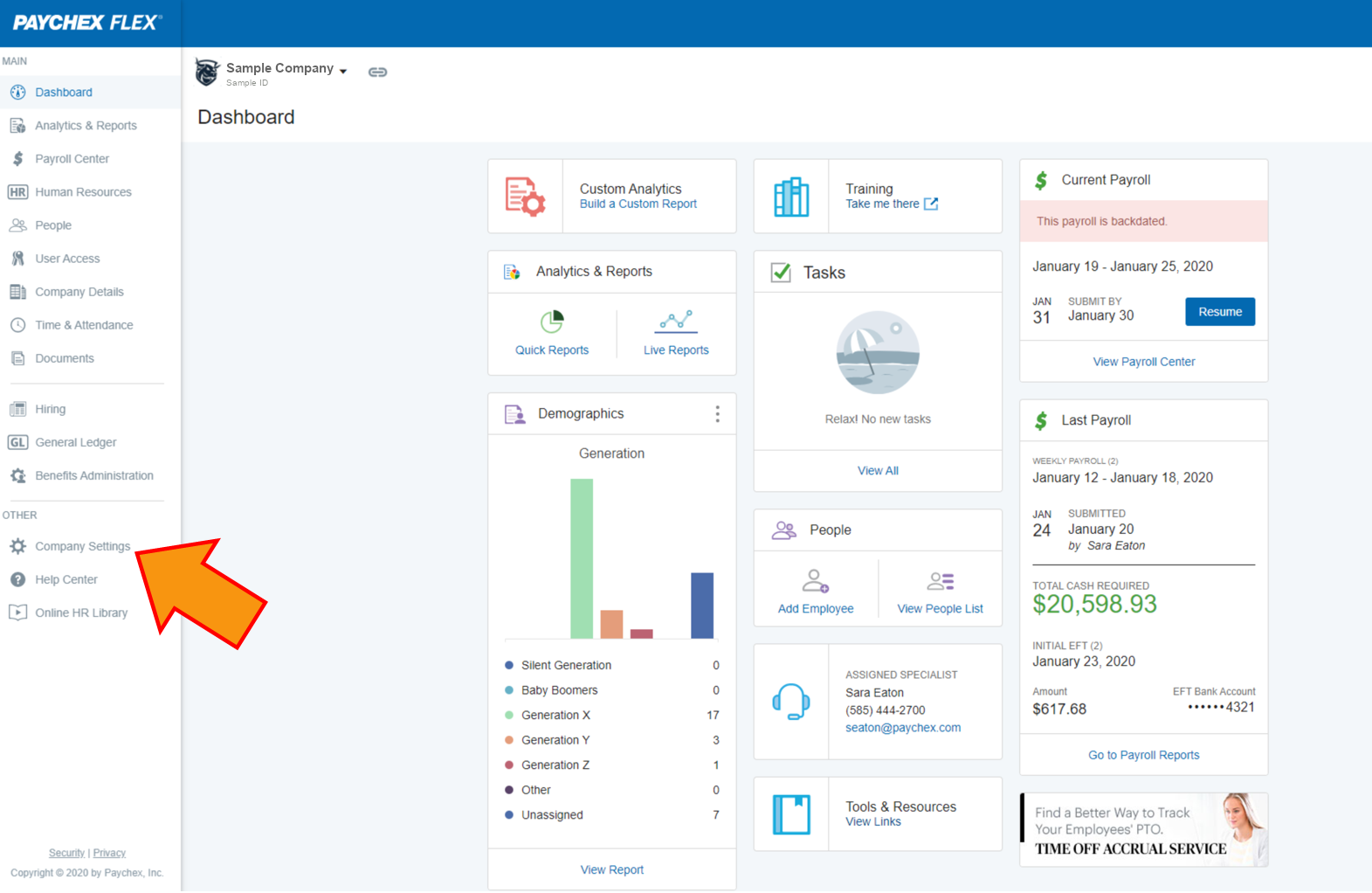
- Click on Integrated Apps, and then click on Create app in the Created by your company section.
- Enter a name for the application in the Application Name text box.
- Optionally, enter a description for the application in the Description text box.
-
In the Access Settings section, toggle company & worker APIs ON, and then select the Read Only radio button.
- Check the I've read and accept the Legal Notice and I've read and accept the Paychex, Inc. API License Agreement checkboxes.
- Click on Save. The Save API Key and Secret dialog is displayed.
- Click on the Copy to Clipboard button, and then click on Done.
- Paste the API Key and API Secret in a notepad, as you will need these credentials when setting up the Paychex connector in OrgChart.
Paychex Fields
OrgChart can connect directly to Paychex to pull employee information. The following section details which fields from Paychex that OrgChart can pull.
The following fields are available to be pulled into OrgChart directly from Paychex. These fields are associated with the Get Worker, Get Worker Communications, Get Worker Compensation Pay Rates, Get Workers Custom Fields, and Get Companies Locations endpoints.
Note
If you are interested in pulling fields from Paychex that are not listed below, please submit your request to OrgChart Support.
| Field Name | Sample Value |
| workerID | 00H2A1IUKAESBXZN4PYS |
| employeeId | 101 |
| workerType | EMPLOYEE |
| employmentType | FULL_TIME |
| exemptionType | NON_EXEMPT |
| workState | IL |
| birthDate |
1989-06-21T00:00:00Z Note: This value is formatted in-app to MM/DD/YYYY. |
| sex | FEMALE |
| ethnicityCode | ASIAN |
| hireDate |
2020-05-20T00:00:00Z Note: This value is formatted in-app to MM/DD/YYYY. |
| clockId | 1 |
| Given Name | INDIANA |
| Middle Name | K |
| Family Name | JONES |
| fullName | This field is calculated using 'givenName' + 'middleName' + 'familyName' |
| preferredName | Indi |
| qualificationAffixCode | IT |
| titleAffixCode | Dr |
| laborAssignmentId | 970003437117733 |
| locationId | 970003436212414 |
| jobId | 970003585037029 |
| jobTitleID | 970003436212359 |
| title | Archaeologist |
| organiztaionId | 970003163104799 |
| organizationName | 1 North Division |
| organizationNumber | 1 |
| supervisorWorkerId | 00H2A1IUK72UOFRV3FK1 |
| currentStatusStatusType | ACTIVE |
| currentStatusStatusReason | HIRED |
| currentStatusEffectiveDate |
2020-05-20T00:00:00Z Note : This value is formatted in-app to MM/DD/YYYY. |
| BUSSINESS_EMAIL | name@company.com |
| BUSSINESS_FAX | (555) 123 - 8765 |
| BUSSINESS_MOBILE_PHONE | (555) 123 - 5678 |
| BUSSINESS_PHONE | (555) 123 - 1234 |
| compensation_0_amount | 123456 |
| compensation_0_default | True |
| compensation_0_effectiveDate | January 1, 2026 |
| commpensation_0_rateID | 1234567891011121 |
| compensation_0_rateNumber | RATE_1 |
| compensation_0_rateType | PER_PAY_PERIOD_SALARY |
| compensation_0_standardHours | 80 |
| compensation_0_startDate | January 1, 2026 |
| location_address_city | New York |
| location_address_countryCode | US |
| location_address_countrySubdivisionCode | NY |
| location_address_postalCode | 10020 |
| location_address_streetLineOne | 30 Rockefeller Plz Fl 10 |
| locationID | 1234567891011121314 |
| location_locationID | 1234567891011121314 |
| location_movedIn | 2026-01-01 |
| location_name | HQ |
Setting up a Paychex Connector
OrgChart can connect directly to Paychex. The following section provides step-by-step instructions for setting up a Paychex connector.
1.Click on the Settings button in the bottom right corner, and then select the Chart Settings option from the list.
2. Click on the connector icon under the Main Data Source heading. The list of Main Data Source connectors is displayed.
3. Click on the Paychex icon.
4. Enter the following information into the corresponding text boxes:
-
Client ID - API Key automatically generated during the Paychex configuration process
-
Client Secret - API Secret automatically generated during the Paychex configuration process
-
Company ID - An 8 digit code provided by Paychex
5. Optionally, click on the Additional fields dropdown menu, and then toggle on additional tables from which you'd like to pull more fields into OrgChart. The following additional field tables are supported:
-
Compensation - Pull compensation data, such as compensation amount and rate type
-
Custom fields - Pull Paychex custom fields
- Locations - Pull location data, such as location name, location ID, or city
5. Click on Save. Then, save and refresh.
Comments
0 comments
Please sign in to leave a comment.