
Audience: Administrators
Overview
Import filters allow Administrators to exclude or include records based on defined criteria. Import Filters are applied to the Base chart selected in the Chart dropdown shown at the top of the Chart Settings menu.
The following article covers:
Accessing Import Filters
1. Click on the Settings button in the bottom right corner, and then select the Chart Settings option from the list.
2. Click on the Import filters tab (previously labeled Filters & Highlights). Any current import filters are listed under the Import filters heading.
Creating an Import Filter
To create a new import filter:
1. Click on the Create new import filter button.
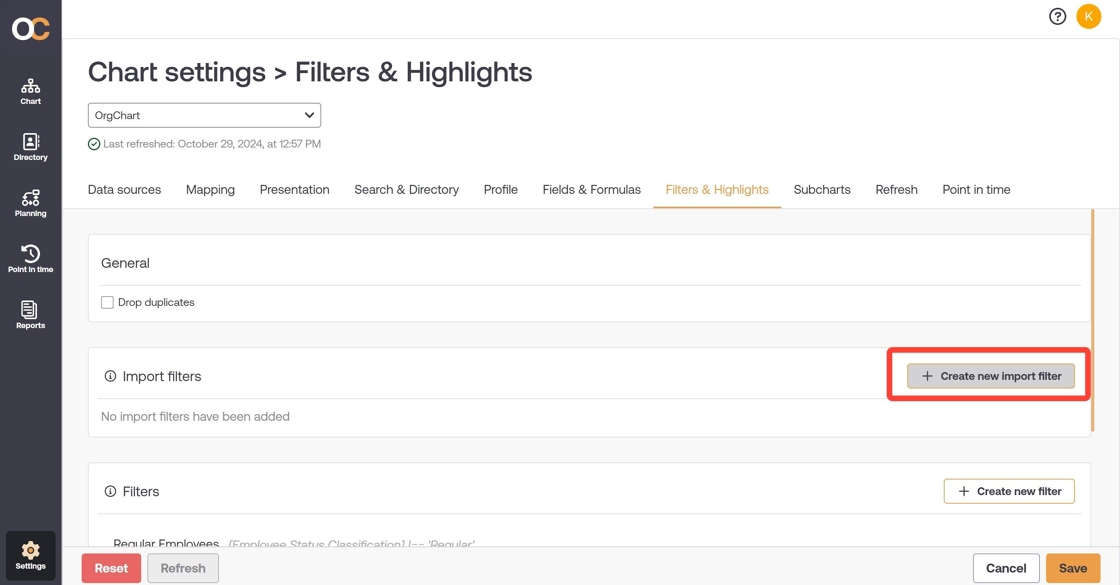
2. A Create import filter dialog appears. Choose the filter type, and then select a field from your dataset to create the filter.
OrgChart supports the following filter types:
| Exclude | Exclude records specified in the filter |
| Include | Include records specified in the filter |
| Seed (Limit to branch) | Import a chosen employee and all of its subordinates |
| Limit fields | Controls which fields to import from the data source of the selected base chart. |

3. Click on the + Add field value button, and then select a field value from your data set. Add all of the fields from the data set that you would like the import filter to target.

4. Optionally, you can hover over a field value, and then click on the pencil icon to edit it. For example, you can edit the field value to make it more generic, and then use the contains option to ensure the import filter targets records that contain, but are not equal to a specific value.

5. Click on Save.

6. Click on Save and then Refresh to apply the import filter to your base chart.

Additional import filter options
| Include filtered managers checkbox | Check to include managers in the chart that would otherwise be filtered out of the import. |
| Date bracket checkbox | Check to define a static or dynamic range of dates to filter on |
Using a Dynamic Date Range
It is possible to create import filters using date brackets. A static date range allows administrators to apply import filters based on the start and end date. A dynamic date range allows an administrators to apply an import filter based on defined amount of time before or after the refresh date.
To access the static range, please do the following:
- Configure an Inclusive or Exclusive import filter.
- Check the Date Bracket checkbox.
-
Select the Static Range option -> Set the Date From & Date To dates -> Click Save
To access the dynamic range, please do the following:
- Configure an Inclusive or Exclusive import filter.
- Check the Date Bracket checkbox.
-
Select the Dynamic Range option, and then select one of the following options from the Refresh Date dropdown menu:
- Days
- Weeks
- Months
-
Use the + and - icons to properly set the scope of the Refresh Date.
-
Select one of the following options from the Bounds dropdown menu:
- Before Bound - Prior to the current date
-
After Bound - After the current date
- Click Save. The import filter will be applied upon the next refresh.
Removing duplicate records
When importing your data, you may see that some records are duplicated. If needed, you can check the Drop duplicates checkbox to remove duplicate records from your base chart.
After checking the Drop duplicates checkbox, click on Save and then Refresh to apply the change to your base chart.
Comments
0 comments
Please sign in to leave a comment.