
Audience: Administrators
Overview
Paycom is a payroll and human resource management software. OrgChart can pull employee data directly from Paycom.
The following article provides detailed information on:
- Frequently asked questions about OrgChart's integration with Paycom
- Instructions on how to configure your Paycom account to integrate with OrgChart
- Instructions on how to set up the Paycom integration in OrgChart
Paycom integration FAQ
-
Can I pull photos from Paycom into my org charts?
Yes. -
What fields can I pull from Paycom?
OrgChart can pull most employee fields from Paycom, including fields associated with the Labor Allocation Profile.
-
Can I pull custom fields from Paycom?
Yes. OrgChart can also pull custom fields that are associated with an employee's profile, as long as custom fields are enabled in your REST API settings. Contact your Paycom administrator for more information. -
Can I merge data from a secondary source with Paycom data?
Yes. To learn how to aggregate data, please reference the Data Aggregation article.
-
Can I embed org charts (generated from Paycom data) into my intranet?
Yes. To learn how to create links to your org charts, please reference the Web Link article.
-
Can I filter which records or fields are included in my org charts?
Yes. OrgChart administrators can create Import Filters to limit the records or fields that are included in your charts.
-
Can I pull open requisitions from Paycom's applicant tracking system?
Not at this time. You can submit a request for this functionality to our Support team.
Configuring your Paycom account to integrate with OrgChart
In order to configure your Paycom account to integrate with OrgChart, please request the following from your Paycom Account Representative:
- Enable the REST API for your Paycom instance
- Create an API service user
- Generate valid authentication credentials (SID and Token)
Once your API settings have been configured, and you have a valid SID and Token, follow the steps in the section below to set up a Paycom integration in OrgChart.
Setting up your Paycom integration in OrgChart
1. Click on the Settings button in the bottom right corner, and then select the Chart Settings option from the list.

2. Click on the 'Click here to select data source' hyperlink under the Main data source heading.

3. Select Paycom from the data source list.
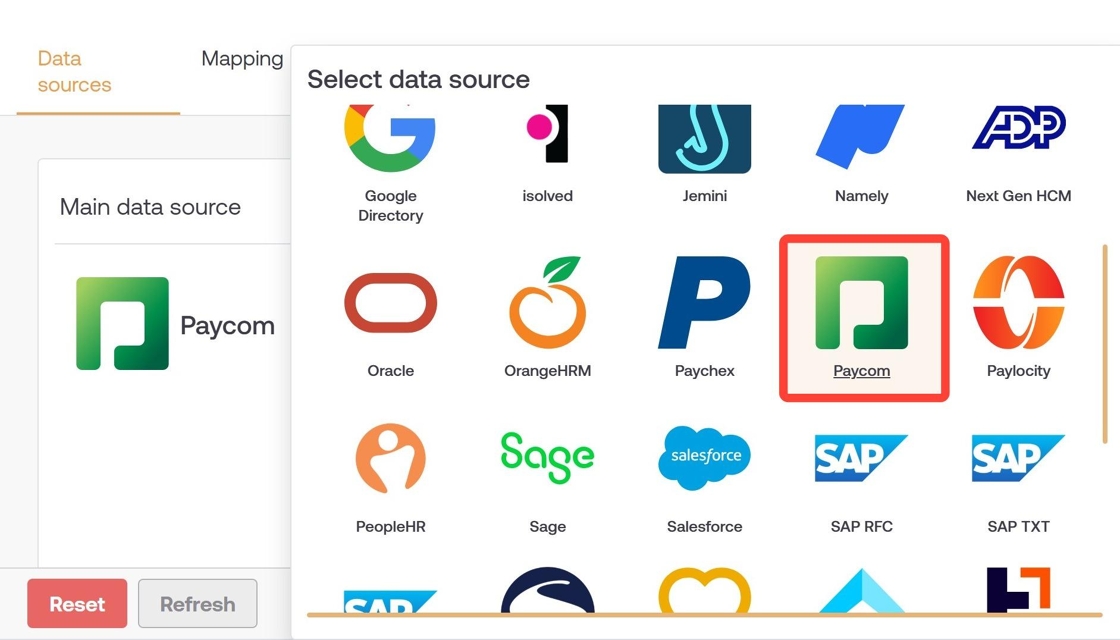
4. Enter your SID into the API Username text box. Enter the API Token into the API password text box.

5. Click on Validate to ensure that your credentials are accurate.
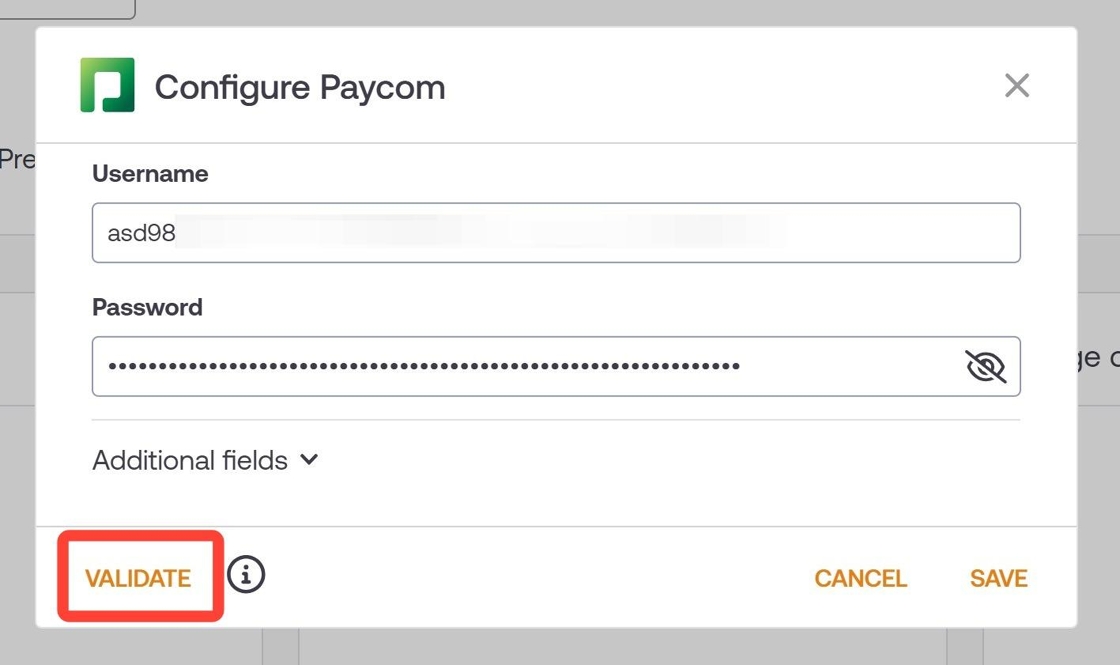
6. Optionally, click on the Additional fields option, and toggle ON additional fields you'd like to pull into OrgChart.
7. Click on Save to close the Paycom configuration modal. Then, click on Save in the bottom right corner of the Chart Settings page.
8. For the first time you pull data into OrgChart, you'll need to schedule a refresh in the Chart Settings: Refresh panel.
Comments
0 comments
Please sign in to leave a comment.