
Audience: Administrators
Overview
Cornerstone is a Human Capital Management solution. OrgChart can pull employee data and open positions directly from Cornerstone using a REST API.
The following article provides information on:
-
Frequently asked questions about OrgChart's integration with Cornerstone OnDemand
-
Instructions on how to configure your Cornerstone OnDemand account to integration with OrgChart
-
Instructions on how to set up the Cornerstone OnDemand integration in OrgChart
- Instructions on how to pull open positions from Cornerstone OnDemand into OrgChart
Cornerstone Integration FAQ
-
How do I set up my connection to Cornerstone?
Reference the Cornerstone Connector Setup article below for more information.
-
Can I pull photos from Cornerstone into my OrgCharts?
Not at this time.
-
Can I limit the fields that a user is able to pull from Cornerstone?
Not at the API level. However, you can apply a Limit Fields Import Filter to exclude certain fields from being imported into OrgChart.
-
What fields can I pull from Cornerstone?
OrgChart can pull most fields associated with the employee profile.
-
Can I merge data from a secondary source with Cornerstone data?
Yes.
-
Can I embed org charts (generated from Cornerstone data) into my intranet?
Yes.
-
Can I add open requisitions from Cornerstone into my org charts?
Yes. Reference the Cornerstone Open Positions article for more information.
-
Can I filter which records are included in my org charts?
Yes.
Configuring your Cornerstone OnDemand account to integrate with OrgChart
-
Work with your Cornerstone System Administrator to create a API Service user, which will be bound to the application, Client ID, and Secret.
Note
The API service user must have access to Manage Edge APIs, and to view the Employee API.
- Follow the steps outlined in the Manage OAuth 2.0 Applications section of the Cornerstone API Management article.
- Copy and paste the generated Client ID and Client Secret to your Notepad.
- Follow the instructions in the Setting up your Cornerstone OnDemand Integration in OrgChart section below to finalize your integration, and begin pulling data into OrgChart.
Setting up your Cornerstone OnDemand Integration in OrgChart
The following article provides step-by-step instruction for setting up a Cornerstone connector in OrgChart.
1. Click on the Settings button in the bottom right corner, and then select the Chart Settings option from the list.

2. The Data sources panel is displayed. The various data sources are is listed under the Main data source heading. Click on the Change data source button so open the data sources menu

3. Under the Select data sources dialog box, click on ConnerStone

4. Enter the following information into the corresponding text boxes:
-
Subdomain - Company subdomain
-
Client ID - Generated when registering the application in Cornerstone
-
Client Secret - Generated when registering the application in Cornerstone
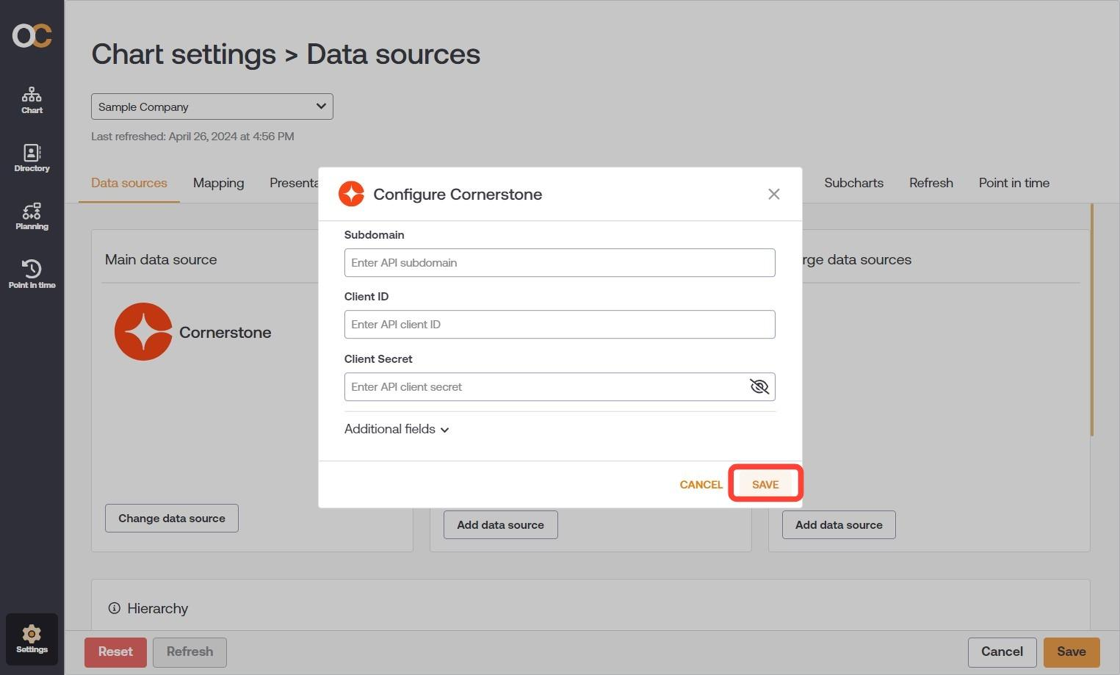
5. Click on Save, then click on Save again and then Refresh.
Pulling open positions from Cornerstone OnDemand into OrgChart
1. Click on the Settings button in the bottom right corner, and then select the Chart Settings option from the list.

2. The Data sources panel is displayed. Under the Append data sources heading click on Add data sources and then click on Cornerstone data source.

3. Enter the following information into the corresponding text boxes:
-
Subdomain - Company subdomain
-
Client ID - Generated when registering the application in Cornerstone
-
Client Secret - Generated when registering the application in Cornerstone
4. Check the ATS checkbox (under the Configuration heading).

5. Click on Save, Save again and then Refresh.
Comments
0 comments
Please sign in to leave a comment.