
Overview
BreatheHR is an online, workforce management solution. OrgChart integrates directly with BreatheHR.
The following article provides information on:
- Frequently asked questions about OrgChart's integration with BreatheHR
- Instructions on how to configure your BreatheHR account to integrate with OrgChart
- Instructions on how to set up the BreatheHR integration in OrgChart
BreatheHR Integration FAQ
-
How do I set up my connection to BreatheHR?
To set up a BreatheHR connector, reference the Setting up a BreatheHR integration in OrgChart section below.
-
Can I pull photos from BreatheHR into my org charts?
Yes. OrgChart can pull photos directly from BreatheHR. Reference the Importing Photos article for additional photo pulling methods.
-
Can I limit the fields that a user is able to pull from BreatheHR?
Yes. You can elect to query a limited set of fields, or all fields. Administrators can also apply an import filter within OrgChart to restrict which fields to pull.
-
What fields can I pull from BreatheHR?
OrgChart can pull the following fields from BreatheHR: 'line_manager_id', 'known_as', 'first_name', 'last_name', 'job_title', 'location_name', 'department_name', 'division_name', 'email', and 'status.'
-
Can I merge data from a secondary source with BreatheHR?
Yes.
-
Can I embed org charts (generated from BreatheHR data) into my intranet?
Yes.
-
Can I add open requisitions into my org charts?
Yes.
-
Can I filter which records are included in my org charts?
Yes. OrgChart administrators can create Import Filters to limit the records that are included in your charts
Configuring your BreatheHR account to integrate with OrgChart
-
Log into BreatheHR.
-
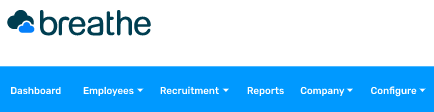
Click Configure in the top toolbar, and then select the Settings option from the dropdown menu.
-
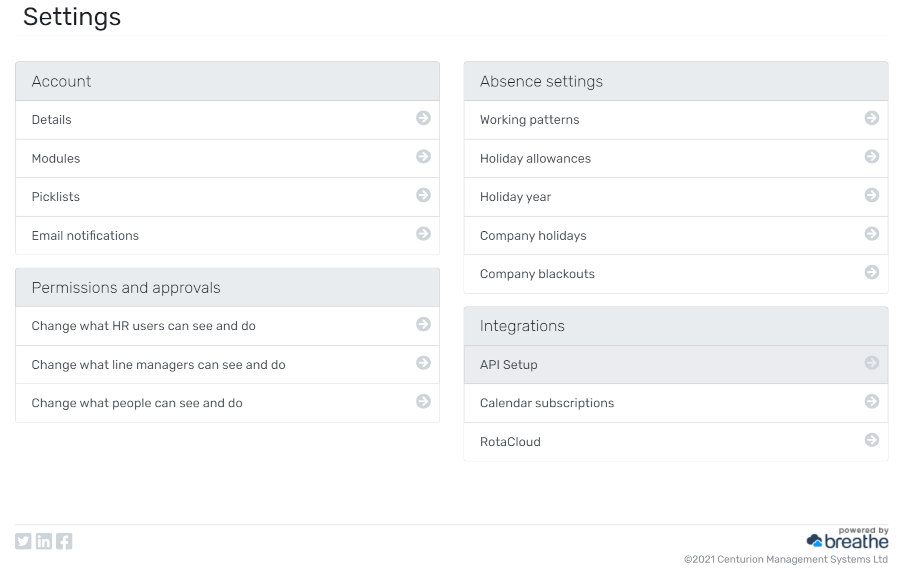
Click on API Setup in the Integrations section.
-
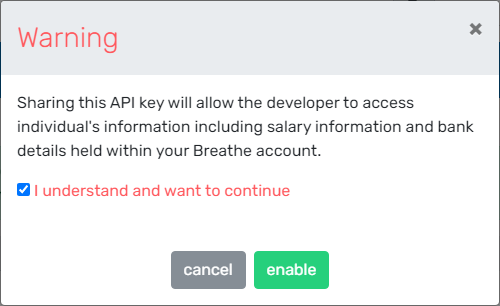
If the API is disabled, click on the green Enable API button. A Warning appears.

-
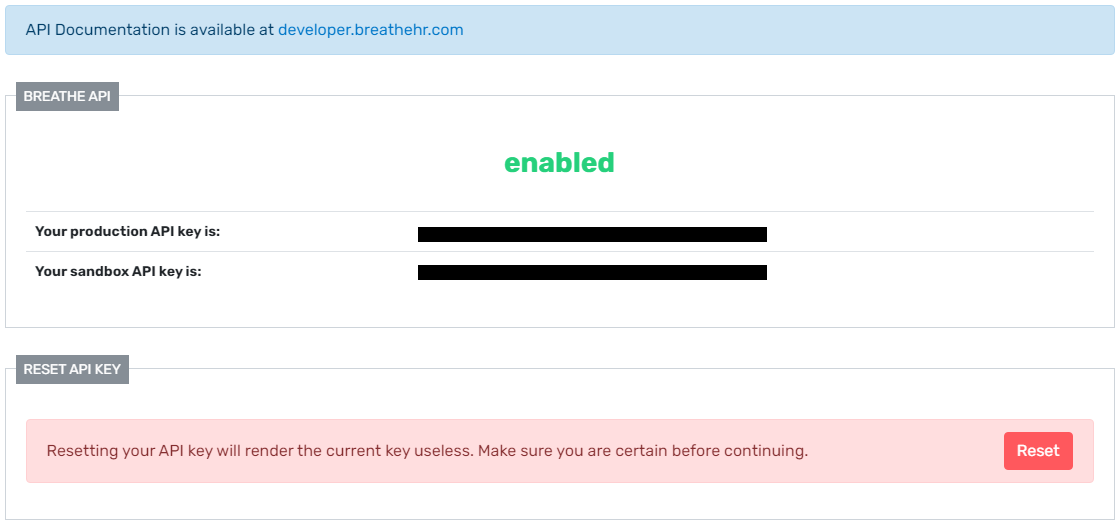
Check the "I understand and want to continue" checkbox, and then click Enable.The API Keys are displayed.
-
Copy the production API key to your clipboard. You will need this API Key to finalize your BreatheHR Connector Setup.
Setting up a BreatheHR integration in OrgChart
1. Log in to OrgChart.
2. Click on chart settings in the settings option and then go to data sources

2. Under the main data sources click on Change data source button, all the Main Data Source connectors are displayed under the select data source dialog box.
3. Double click on Breath HR icon

4. A BreathHr dialog box will appear, enter the API Key (generated in BreatheHR) into the API Key text box.
5. Check the Query all fields checkbox to query all populated data fields within BreatheHR.
Note
If you do not check the Query all fields checkbox, the following fields will be pulled into OrgChart:
Status
PersonID
Name
location_name
line_manager_id
last_name
known_as
job_title
first_name
division_name
department_name
6 .Check the Past employees checkbox to include terminated employees in the org chart.

7. Click on Save, and then Refresh.
Comments
0 comments
Please sign in to leave a comment.