
Audience: Administrators
Overview
Workday is a Human Resource Capital Management solution. OrgChart directly connects with Workday. The following article provides information on:
- Instructions on how to configure your Workday account to integrate with OrgChart
- Instructions on how to set up a Workday (API) integration in OrgChart
Configuring Workday(API) for OrgChart integration
There are 5 main steps to configuring a Workday API for OrgChart integration. The following section provides details instructions for each step:
- Create an integration system user (ISU)
- Create a security group
- Register API client for integration
- Link API client to ISU
- Activate pending changes
Creating an integration system user (ISU)
- In Workday, in the search bar at the top of the page, search “Create Integration System User” and click on the Create Integration System User result.
- Create a user, and give it a username (i.e, “OrgChart”), and password.
- Check the Do Not Allow UI Sessions checkbox.
- Click on OK.
Creating a security group
- In the search bar, search for and run the “Create Security Group” task.
- For Type of Tenanted Security Group, select the Integration System Security Group (Unconstrained) option.
- Name your security group and click OK.
- On the next screen in Integration System Users, search for the ISU you created in the "Creating an integration system user (ISU)" section, and then assign it to this security group.
- Click OK.
- On the next screen click the three dots “...” next to the name of your new Security Group
- Hover your mouse over Security Group in the menu that appears.
- In the sub-menu next to Security Group, click Maintain Domain Permissions for Security Group.
- In the Report/Task Permissions section, click on input for Domain Security Policies permitting View access.
- You will need to add, at minimum, the following three areas to your security policy:
- Self-Service: Current Staffing Information
- View: Supervisory Organization
- Worker Data: Public Worker Reports
- Click on OK.
Registering an API client for integrations
- Search for and run the “Register API Client for Integrations” task, and create the API Client “OrgChart REST.”
Note
Use caution to expose only those functional areas that you specifically require access to.
- Select the functional areas for domains of any custom objects to which you require access. The following are required:
- Staffing
- Organizations and Roles
- Ensure all the checkboxes match those in the picture below:
- Click OK.
- You will be taken to a screen like the one below:
- Save the Client ID and Client Secret to your computer, we will need them later.
Caution
Make sure to save the Client Secret somewhere safe. This is the ONLY TIME you will have access to it.
Linking the API client with your ISU
- Search for, and run, the "View API Clients" report.
- Click on the API Clients for Integrations tab.
- Copy the value of your Workday REST API Endpoint and save it with your Client ID and Client Secret. You will need the Domain and Account Name portions of the URL later.
- Click the name of your API Client (“OrgChart REST”) in the table.
- In the next screen click the “...” next to your API Client name, and then choose API Client > Manage Refresh Tokens for Integrations.
- In the window that opens, click on the Workday Account search box, and then search for the ISU you created in the "Creating an integration system user (ISU)" section.
- Click OK.
- On the next screen, check the Generate New Refresh Token checkbox, and then and click OK.
- On the following screen, copy the value you see for your Refresh Token and save it with your Client ID and Client Secret.
Activating pending changes
- Search for and run the “Activate Pending Security Policy Changes” task.
- Optionally, add any comments.
- Click OK.
- On the next screen you will see a summary of your change request. Check the Confirm checkbox, and then click OK to complete the activation process.
Setting up Workday(API) in OrgChart
1. Click on the Settings button in the bottom right corner, and then select the Account Settings option from the list.

2. Navigate to Chart Management panel and then click on the + Create base chart button
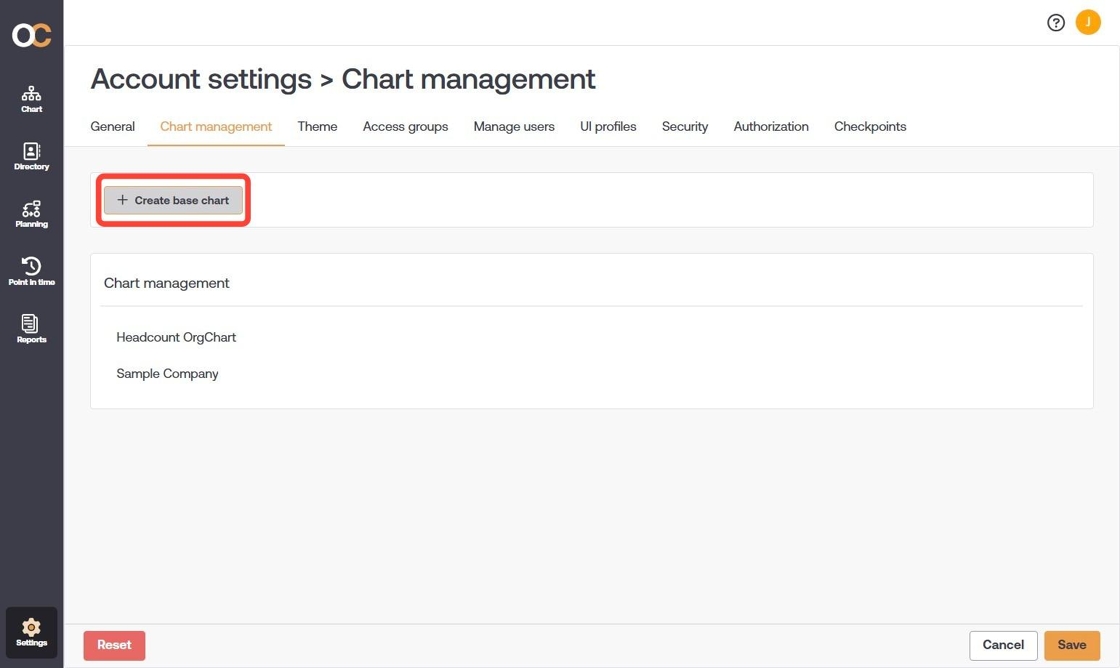
3. The employee chart option is selected. Enter the name of the chart in the chart name text box.

4. Click on the Choose data source button, and then select Workday (API) data source from the data sources panel.
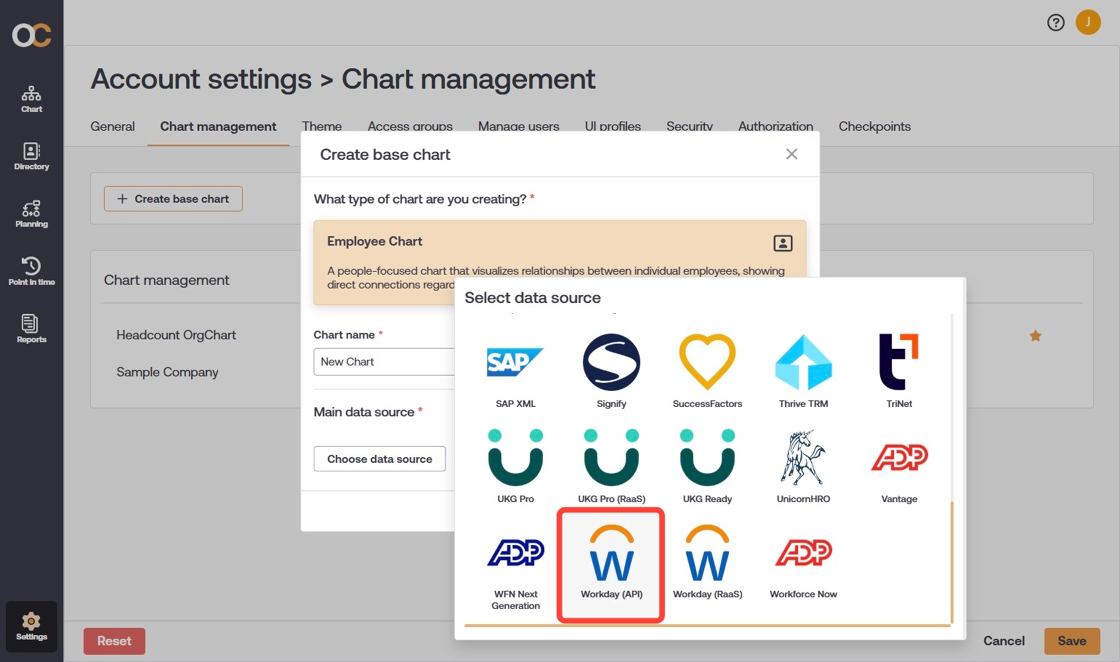
5. After you select the Workday (API) data source, you will be asked to configure it. Enter the following details into the coordinating text boxes:
- Domain - The first portion of the Workday REST API URL (starting with 'https' and ending with '.com')
- Account name - String found at the end of the Workday REST API URL
- Client ID -Value generated while registering the Workday API for client integration
- Client Secret - Value generated while registering the Workday API for client integration
- Refresh token - Token generated while linking your API client to your ISU

6. Click on the validate button to ensure the credentials you entered are correct.
7. Click on Save, and then click on Create.
8. Follow the prompts to load your field mapping. Then save and refresh.
Comments
0 comments
Please sign in to leave a comment.