
Audience: Administrators
Overview
UKG Pro (formerly UltiPro) is cloud-based human capital management system. OrgChart can directly connect to UKG Pro using the SOAP Reports As a Service (RaaS) Interface. The following is a list of frequently asked questions (FAQs) pertaining to UKG Pro's compatibility with OrgChart.
FAQ
-
How do I set up my connection to UKG Pro (Raas)?
Reference the following section to set up an UKG Pro (RaaS) connection. -
Can I pull photos from UKG Pro (Raas) into my org charts?
Not at this time. -
Can I limit the fields that a user is able to pull from UKG Pro (Raas)?
OrgChart will pull all the fields included in the Employee report. -
What fields can I pull from UKG Pro (Raas)?
OrgChart can pull most fields associated with an employee record. Contact OrgChart Support to determine if a desired field can be pulled. -
Can I merge data from a secondary source with UKG Pro (Raas) data?
Yes. -
Can I embed org charts (generated from UKG Pro [RaaS] data) into my intranet?
Yes. -
Can I add open requisitions from UKG Pro (RaaS) into my org charts?
Yes. In order to do so, specific BI rules must be enabled in the backend with UKG Pro. Reference the UKG Pro (RaaS) Open Positions article and work with your UKG Pro System Administrator to pull open requisitions into OrgChart. -
Can I filter which records are included in my org charts?
Yes.
UKG Pro (RaaS) Configuration
The UKG Pro (RaaS) connector allows administrators to import UKG Pro data directly into OrgChart using the SOAP Reports As a Service (RaaS) Interface. Before you begin, you will need to open an Administrative Case, and set permissions for your report
Administrative Case
To get started, an administrator must open an Administrative Case with the Administrative SaaS Team in order to add the BI Consumer (Core) role to your report. When you submit this request, be sure to include the following information in the Description Information section in order to expedite this process:
-
For the What are You Working with Today option, select Reporting.
-
For the Additional Information field, select Related to Business Intelligence.
-
For the Does This Impact Your Payroll Deadlines option, select NO.
-
For the Case Originator Keywords field, enter Business Intelligence.
In the Description field, include the following:
- Instructions requesting the assignment of BI roles to your web services account
- The name of your web services account
Set Permissions
Additionally you will need set permissions for the BI Consumer (Core) role to read, execute, and traverse the following:
-
The employee report
-
The folder where the employee report is stored
-
The parent folder
Configuring a UKG PRO ( RaaS) Connector
-
Log in to your UKG Pro account.
-
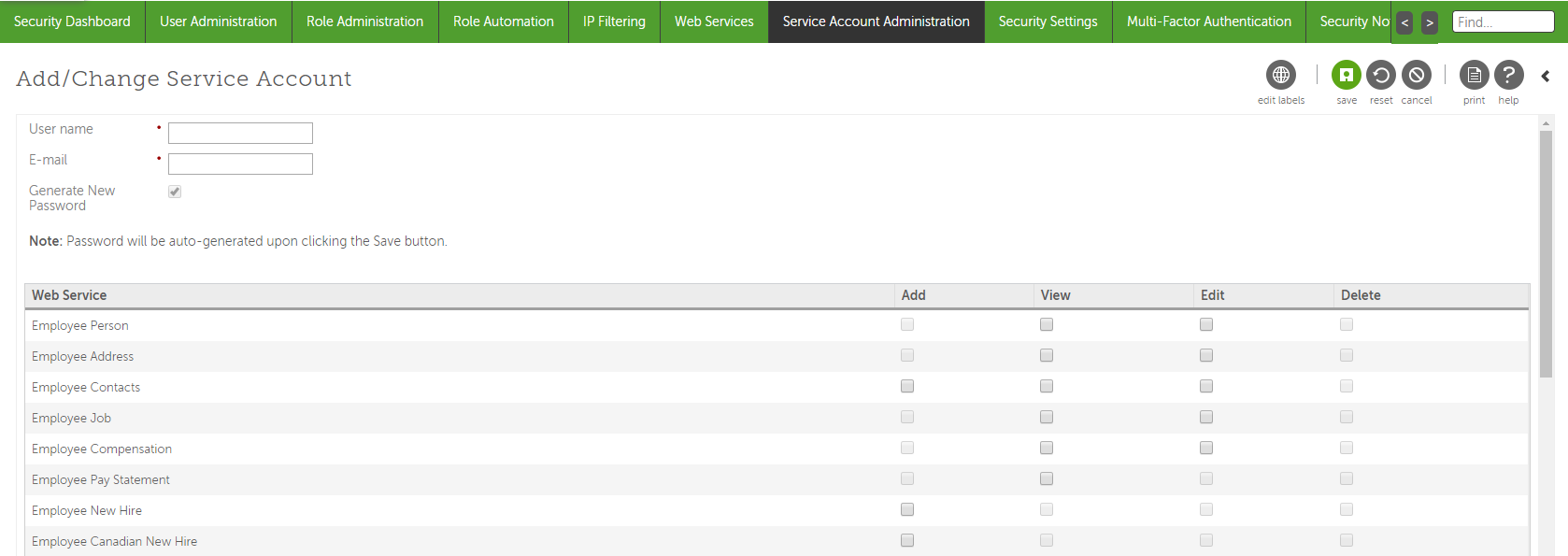
Select the System Configuration tab, and then select the Service Account Administration option.
-
Click on the + button to add a new API Service User account.
-
Enter a user name (Typically this would be your AR number followed by "_OrgChartNow. For example: ABC1001_OrgChartNow).
-
Enter an email address (typically the administrator's email address).
-
Check the Generate New Password checkbox. The password will be auto-generated after clicking Save.
-
Check the View checkbox associated with the following required fields:
-
Employee Person
-
Employee Job
-
Employee Employment Information
-
-
Before continuing to the next step, make sure that you have a record of the following information:
-
User name: (from Step 4)
-
Password: (from Step 6)
-
User API Key: (to the right of the the newly created user)
-
Customer API Key: (at the top of Service Account Administration panel)
-
-
Click Save in the upper right corner.
-
Click on the System Configuration tab, and then select the Web Services option.
-
Look for the Business Intelligence web service endpoint. Note the first part of the endpoint address, i.e. "service4."
-
Select the Business Intelligence tab.
-
Create a new folder called "OrgChart."
-
Create a report, and then name this report "OrgChart Employee Report."
-
Note the Report Path starting at zzzCompany Folders (i.e. zzzCompany Folders_Acme Inc_UKGPro_IT Reports_OrgChart).
-
Include (at least) the following required fields in the report:
-
Employee Name
-
Employee Number
-
Supervisor Employee Number
-
Job Title
-
Org Level 2 - Department Name
-
Org Level 2 Code - Department Number
-
Employment Status
-
Employee Type
-
-
Set the properties for the report.
-
Make sure the report is filtered on Active (and if needed LOA employees).
Select the Permissions tab, and ensure the following is true:
-
The report has the BI Consumer (Core) role.
-
The Override the Access Permissions Acquired from the Parent Entry checkbox is checked.
-
The BI Consumer (Core) permissions are set to Read, Execute, and Traverse.
UKG Pro ( RaaS) Connector
The UKG Pro (RaaS) connector allows administrators to import UKG Pro data directly into OrgChart using the SOAP Reports As a Service (RaaS) Interface. The following article provides step-by-step instructions for setting up an UKG Pro Connector.
Setting up a UKG Pro Connector
1. Click on the Settings button in the bottom right corner, and then select the Chart Settings option from the list.

2. Click on the 'Click here to select data source' hyperlink under the Main data source heading.

3. Select UKG Pro(RaaS) from the list of connectors.

4. Enter the following information into the corresponding textboxes:
- Interface - Name of UKG Pro (RaaS) Interface (for example, BI,BICA BIT, or WS)
-
Subdomain - The first part of the Business Intelligence web server endpoint address (located in step 11 of the UKG Pro (RaaS) Configuration section above)
-
User Access Key - API Key associated with the Web Service User account (located in step 8 of the UKG Pro (RaaS) Configuration article)
-
Client Access Key - Customer API Key (located in step 8 of the UKG Pro (RaaS) Configuration article)
-
User Name - User name of the Web Service User account (assigned in step 4 of the UKG Pro (RaaS) Configuration article)
-
Password - Password for the Web Service User account (automatically generated in step 6 of the UKG Pro (RaaS) Configuration article)
-
Report Name - Name of the Employee Report (generated in step 14 of the UKG Pro (RaaS) Configuration article, for BI Interface only)
-
Report Path - The folder path used to access the report (noted in step 15 of the UKG Pro (RaaS) Configuration article, for BI Interface only)

5. Click on the validate icon at the bottom of the configuration dialog box to test that the credentials provided are valid.
Note
If authorization fails, a Failed Authorization alert is displayed, detailing the invalid credential(s). Re-enter valid credentials, and then re-test until you receive a successful authorization.
6. Click on the yellow Configure Mapping button, and then click on Save Changes. The Chart Settings: Mapping panel is displayed.
7. Click on the yellow Load Mapping button.
8. Ensure that OrgChart has mapped the fields correctly, and then click on Save, and then Refresh.
Note
An Administrative Case will need to be opened with the UKG Pro Administrative SaaS Team so that all permissions are properly set to allow OrgChart to pull your UKG Pro data. Permissions must be set on all folders in the Report Path.
UKG Pro ( RaaS) Scheduled Refresh
UKG Pro (RaaS) routine maintenance occurs between 3:00am - 5:00am EST (7:00am-9:00am GMT). All UKG Pro (RaaS) charts must schedule their daily refresh outside the parameters of UKG Pro (RaaS) maintenance, in order to avoid false notifications of a Failed Refresh. The following section provides step-by-step instructions for configuring the Refresh for a UKG Pro (RaaS) Master Chart.
1. Click on the Settings button in the bottom left-hand corner of the screen, and then click on Chart Settings.

2. Click on the Refresh tab.
3. Click on the Frequency dropdown menu, and then select the frequency at which you'd like your org chart to refresh.
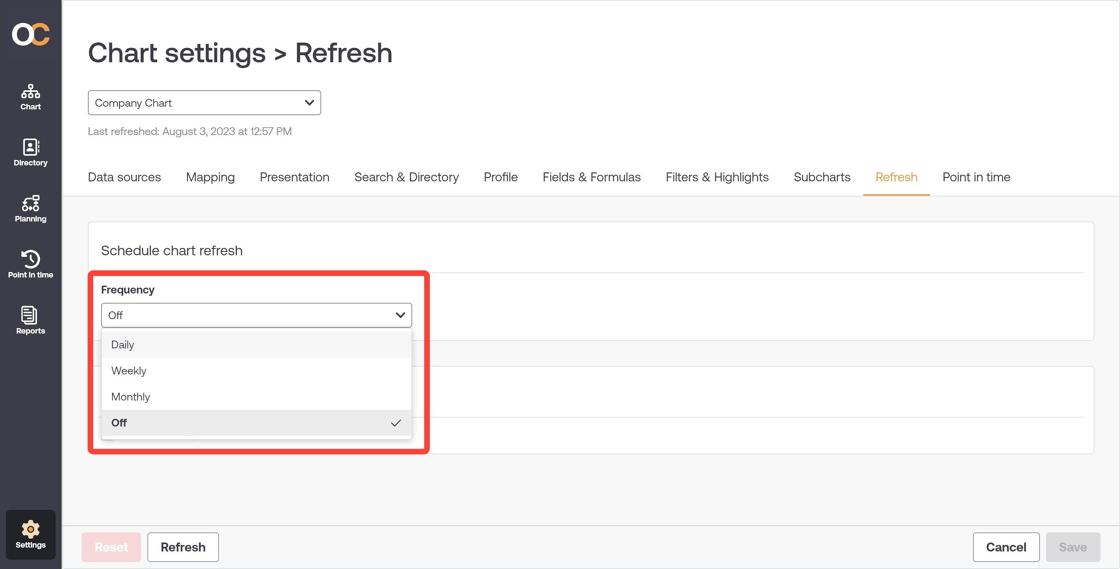
4. Click on Save.
Comments
0 comments
Please sign in to leave a comment.