
Audience: Administrators
Overview
UKG Pro is a comprehensive Human Capital Management solution for the modern workforce. OrgChart can connect directly to UKG using an API. The following article is a list of frequently asked questions (FAQs) pertaining to OrgChart's compatibility with UKG.
FAQ
-
How do I set up my connection to UKG?
The following section describes steps to set up a UKG connection.
-
Can I pull photos from UKG into my org charts?
Not at this time. However, reference the Importing Photos article to view a number of other methods available to pull photos into OrgChart.
-
Can I limit the fields that a user is able to pull from UKG?
Yes. Permissions can be set within UKG to limit the fields pulled into OrgChart.
-
What fields can I pull from UKG?
Reference the UKG Pro (API) Fields section below to see what fields OrgChart can pull via the UKG Pro API.
-
Can I pull platform configuration (PC) fields from UKG?
Yes.
-
Can I merge data from a secondary source with UKG data?
Yes.
-
Can I embed org charts (generated from UKG data) into my intranet?
Yes.
-
Can I add open requisitions into my org charts?
Yes. You can append open requisitions with any supported Append Data Source.
-
Can I filter which records are included in my org charts?
Yes.
Configure a UKG Connector
-
Sign in to your UKG account.
-
Click on the
 icon
located at the top of the left side panel.
icon
located at the top of the left side panel.
Note
If the left side panel is not displayed, click on the icon in the top-left corner
-
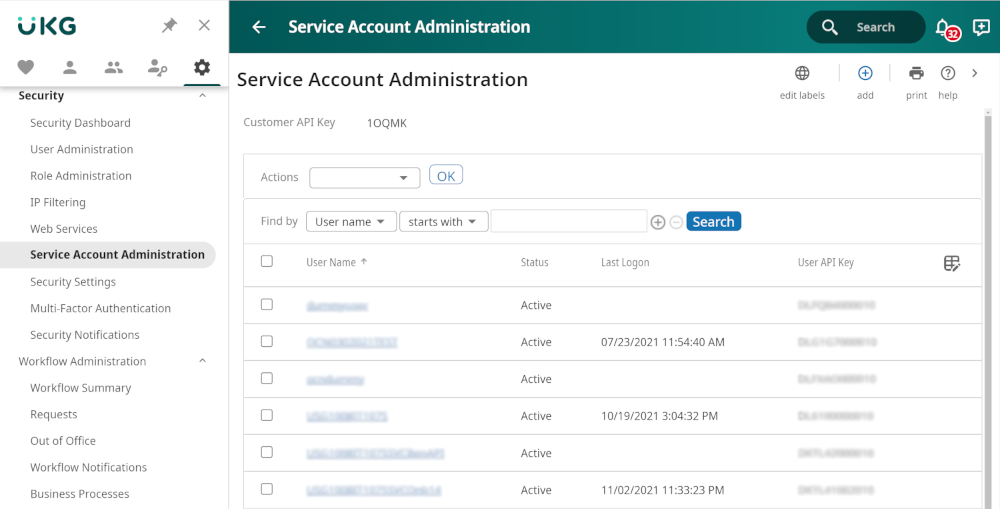
Click on Security, and then click on Service Account Administration option. The following page is displayed:
-
Copy the Customer API Key (under the Service Account Administration heading), and then Paste it in a separate document.
-
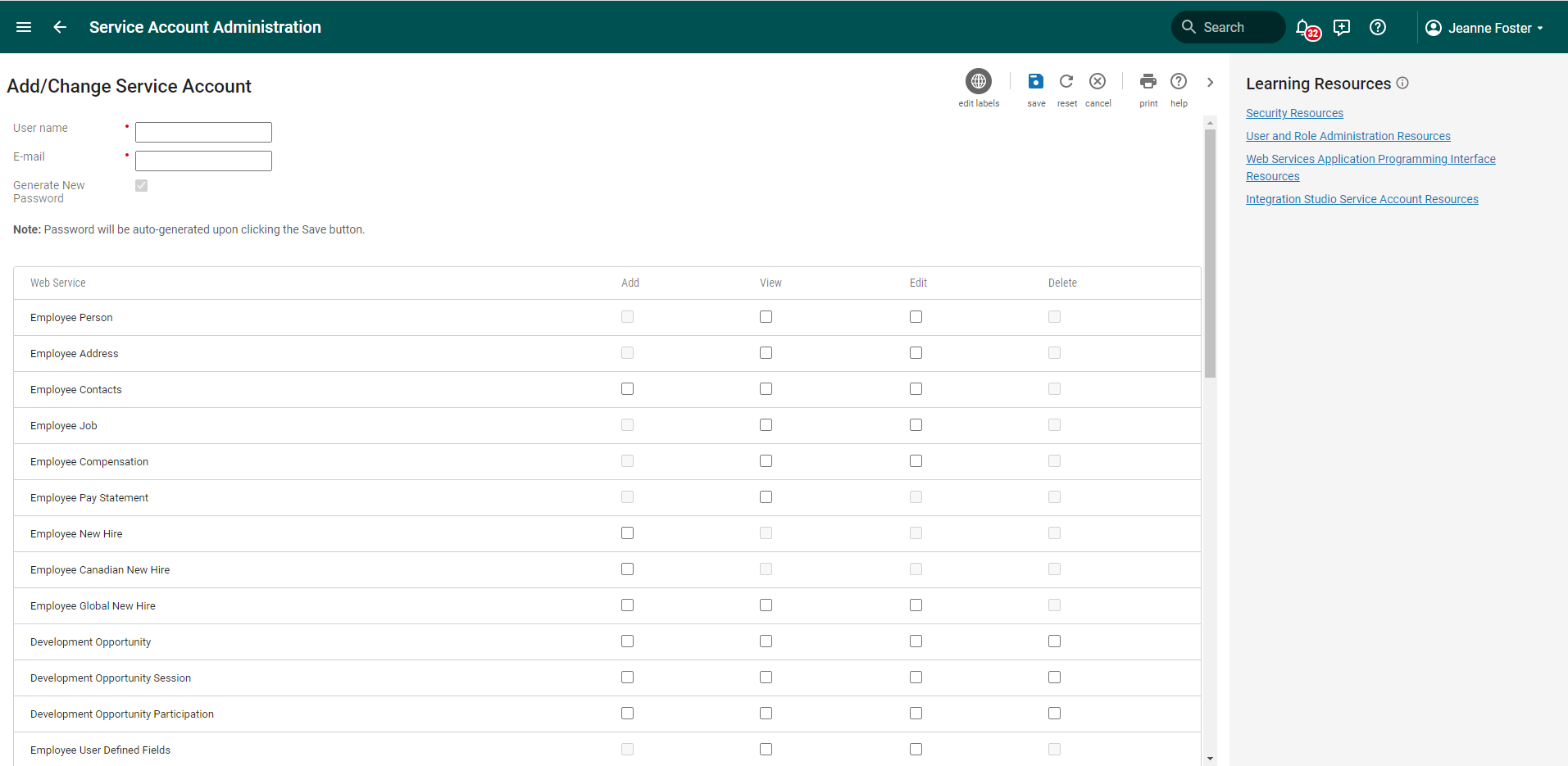
Click on + add (in the top right) to add a Service Account. The following page is displayed:
-
Enter a Username (i.e. OCN_API) for the web service user.
-
Enter a valid Email address (typically that of the UKG Administrator creating this Service Account).
Note
The Generate New Password checkbox is automatically checked when adding a new Service Account. After entering the remaining required information and selecting Save, a New Password window displays with the randomly generated password
-
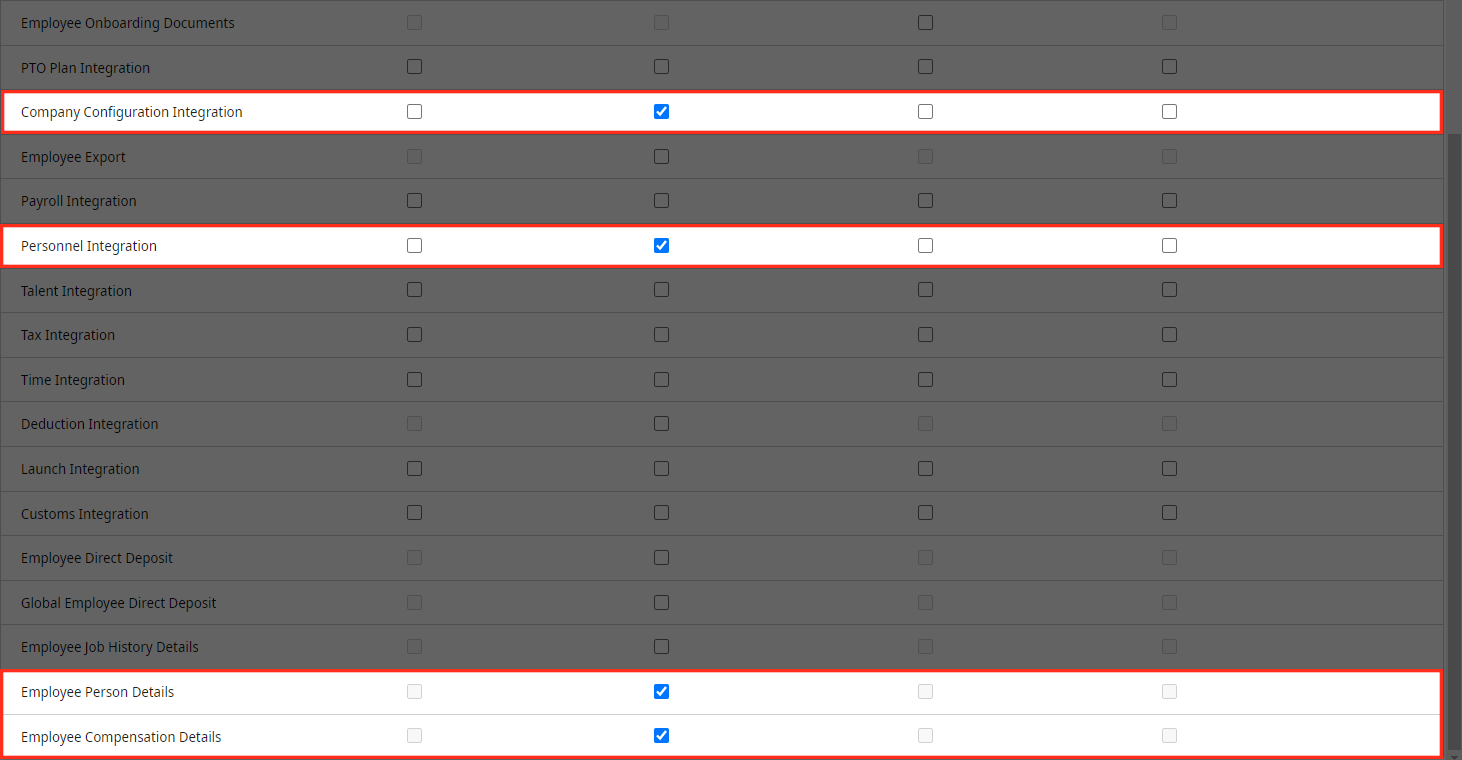
Scroll to the bottom of the list, and then check the View checkbox to set the API permissions for the following Web Services:
-
Personnel Integration
-
Employee Person Details
-
Employee Compensation Details
-
Company Configuration Integration (Required to pull Org Details)
-
-
Click on the Save icon (in the top right) to preserve the Service Account settings. The automatically generated New Password appears.
-
Copy the password, and Paste it in a separate document. This password is required for completing the UKG Connector Setup.
Caution
The New Password only appears once. If this password is lost, you will need to generate a new one.
-
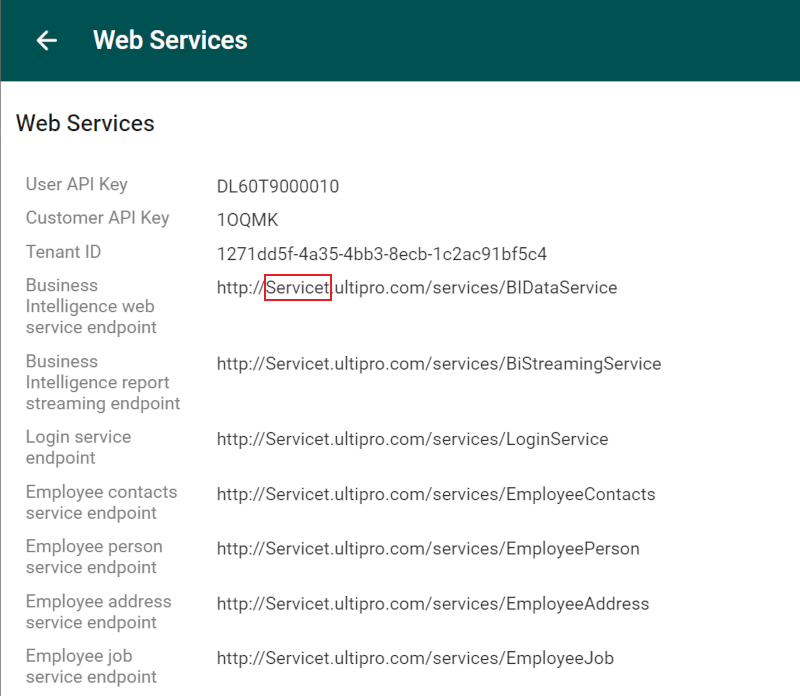
Click on the Web Services tab (in the left side panel).
-
Copy the first section of the endpoint URL (outlined in red below) listed on the Web Services page, and then paste it in a separate document.
-
Follow the steps outlined in the UKG Pro (API) Connector Setup section below to finalize your integration.
Setting up a UKG Connector
1. Click on the Settings button in the bottom right corner, and then select the Chart Settings option from the list.

2. Click on the 'Click here to select data source' hyperlink under the Main data source heading.

3. Click on the UKG Pro icon from the Select data source menu.

4. Enter the following information into the corresponding text boxes:
-
Subdomain - The first section of your endpoint URL (copied in step 12 of the UKG Configuration section above).
-
Username - Web Service username (assigned in step 6 of the UKG Configuration article)
-
Password - The password generated for the Web Service User (generated in step 9 of the UKG Configuration article)
-
Client Key - The Customer API Key (copied in step 4 of the UKG Configuration article)
5. Optionally, select any additional tables that you would like to pull into OrgChart from the Additional Tables dropdown menu.

Note
Reference the UKG Pro (API) Fields section below to see which fields are associated with each tables.
6. Click on Save and then Refresh.
UKG Pro ( API) Fields
OrgChart can pull employee data from UKG Pro using the UKG Pro API.
Note
Before attempting to pull fields into OrgChart, please reference the UKG Pro (API) Configuration section above to learn how to set permissions for your API Service User.
Currently, OrgChart pulls fields from the following tables:
- Employee (default)
- Person Details
- Compensation Details
- User Defined Fields
- OrgDetails
- PlatformConfiguration Fields
The following article details which fields OrgChart can pull from these tables, as well as how to pull these tables into OrgChart while setting up your UKG API Connector.
Note
If you would like to pull any additional fields not listed below, or any fields from a different UKG Pro table, please contact OrgChart Support to submit your request.
Employee
The following fields can be pulled from the Employee table, and are pulled into OrgChart by default.
| OCN Field | UKG Pro Field |
| firstName | First Name |
| fullTimeOrPartTimeCode | Full/Part Time Code |
| hireSource | Hire Source Code |
| isAutoAllocated | Auto Allocate Employee |
| isAutopaid | Pay Automatically |
| isMultipleJob | Derived from multiple active jobs in the Job History tab |
| jobChangeReasonCode | Reason Code |
| jobGroupCode | Job Code |
| jobTitle | Title |
| languageCode | Preferred Language Code |
| lastHireDate | Last Hired |
| lastName | Last Name |
| leaveReasonCode | LOA Reason Code |
| locationGLSegment | Location GL Segment |
| mailstop | Mailstop |
| middleName | Middle Name |
| okToRehire | Eligible for rehire |
| orgLevel1Code | Division Code |
| orgLevel2Code | Department Code |
| orgLevel3Code | Region Code |
| orgLevel4Code | Team Lead Code |
| originalHireDate | Original Hire |
| payGroup | Pay Group Code |
| payGroupDescripton | Pay Group |
| payPeriod | Pay Period Code |
| plannedLeaveReason | Planned Leave Reason Code |
| positionCode | Position Code |
| preferredName | Preferred First Name |
| primaryJobeCode | Job Code |
| primaryProjectCode | Project Code |
| primaryWorkLocationCode | Location code |
| salaryOrHourly | Hourly/Salaried |
| scheduledWorkHrs | Scheduled Hours |
| shift | Shift Code |
| shiftGroup | Shift Group Code |
| statusStartDate | As Of (Employment Status) |
| supervisorCOID | Supervisor CoID |
| supervisorCompanyCode | Supervisor Company Code |
| supervisorEmployeeNumber | Supervisor Employee Number |
| supervisorFirstName | Supervisor Last Name |
| supervisorID | Supervisor Employee ID |
| supervisorLastName | Supervisor Last Name |
| terminationReasonDescription | Termination Reason |
| termReason | Termination Reason |
| termType | Type |
| timeclockID | Time Clock |
| unionLocal | Local Union |
| unionNational | National union |
| weeklyHours | Weekly Hours |
| workPhoneCountry | Country |
| workPhoneExtension | Work Extension |
| workPhoneNumber | Primary Work Phone |
Person Details
The following fields can be pulled once an Administrator toggles the Person Details ON in the Chart Settings: Data Source

| OCN Field | UKG Pro |
| additionalName1 | Additional Name 1 |
| additionalName2 | Additional Name 2 |
| addressCity | City |
| addressCountry | Country |
| addressId | addressID |
| addressIsOnTaxBoundary | On Tax Boundary |
| addressLatitude | Address Latitude |
| addressLine1 | Address Line 1 |
| addressLine2 | Address Line 2 |
| addressLine3 | Address Line 3 |
| addressLine4 | Address Line 4 |
| addressSms | Address SMS |
| addressState | State |
| addressZipCode | Zip Code |
| chkCashingInstCode | Check Cashing |
| cobraExport | COBRA Export |
| cobraIsActive | COBRA Is Active |
| cobraNotes | COBRA Notes |
| cobraReason | COBRA Reason |
| cobraStatus | COBRA Status |
| cobraStatusDate | COBRA Status Date |
| communityBroadcastSmsCode | Community Broadcast SMS Code |
| consentElectronicW2 | Consent Electronic W2 |
| consentElectronicw2pr | Consent Electronic W2 PR |
| dateDeceased | Date Deceased |
| dateOfBirth | Date of Birth |
| dateOfCobraEvent | Date of Event |
| dateOfCobraExport | Date of COBRA Export |
| dateOfCobraLetter | Date Letter Sent |
| dateOfI9Expiration | Date of i9 Expiration |
| disabilityType | Disability Type |
| ethnicDescription | Ethnic ID |
| ethnicIDCode | Ethnic ID Code |
| formerName | Former Last |
| gender | Gender |
| healthBloodType | Health Blood Type |
| healthEyes | Health Eye Color |
| healthHair | Health Hair |
| healthHeightFeet | Health Height Feet |
| healthHeightInches | Health Height Inches |
| healthLastDonateDate | Health Last Donate Date |
| heathWeight | Health Weight |
| homePhone | Primary Home Phone |
| homePhoneCountry | Country (Home Phone) |
| homePhoneIsPrivate | Y/N depending on if the home phone is marked private |
| isAlienNumber | Alien Number |
| i9DocA | Document A |
| i9DocB | Document B |
| i9DocC | Document C |
| i9Verified | Verified |
| i9VisaExpirationDate | Visa Expiration |
| i9VisaType | Visa Type |
| i9WorkAuth | Work Authorization |
| isDisabled | Disabled |
| isMultiPayGroup | Y/N Depending on Pay Group |
| isSmoker | Smoker |
| lastNameNotSameAsSSCard | Last Name Not Same As SS Card |
| maritalStatusCode | Martial Status Code |
| miltaryBranchServed | Military Branch Served |
| miltaryEra | Military Era |
| miltaryIsActiveWartimeVet | Military Is Active Wartime Vet |
| militaryIsDisabledVet | Military Is Disabled Vet |
| miltaryIsMedalVet | Military Is Medal Vet |
| militaryIsOthEligVet | Military Is Oth Elig Vet |
| militarySeparationDate | Military Separation Date |
| miltaryService | Military |
| nameFormer | Former Name |
| namePrefixCode | Name Prefix Code |
| nameSuffixCode | Name Suffix Code |
| nationalIdCountry | National ID Country Code |
| nationality1 | Nationality 1 |
| nationality2 | Nationality 2 |
| nationality3 | Nationality 3 |
| originCountry | Origin Country |
| originLocation | Origin Location |
| personId | personID |
| preferredName | Preferred Name |
| previousSSN | Previous SSN |
| scheduledAnnualHrs | Scheduled Annual Hours |
| scheduledFTE | Scheduled FTE |
| smsApprovals | smsApprovals |
| smsPayNotification | smsPayNotification |
| ssnlsSuppressed | SSN Is Suspended |
| userName | username |
| w2IsDeceased | w2 Is Deceased |
Compensation Details
The following fields can be pulled once an Administrator toggles the Compensation Details ON in the Chart Settings: Data Source panel.

| OCN Field | UKG Pro |
| annualSalary | Annual Salary |
| avgPayRateCurPer | Average Pay Rate |
| bonusTotalHrs | Bonus Total Hours |
| bonusTotalOtHrs | Bonus Total OT Hours |
| currencyCode | Currency Code |
| dateLastPaid | Date Last Paid |
| dateOfLastSalaryReview | Last |
| dateOfNextSalaryReview | Next |
| distributionCenterCode | Distribution Center Code |
| emplStatus | Employee Status |
| hourlyPayRate | Hourly Pay Rate |
| isHighlyCompensated | Highly Compensated |
| isSeasonalWorker | Seasonal Worker |
| jobChangeReasonCode | Reason Code (Job History) |
| jobSalaryGrade | Salary Grade |
| numberOfPayments | Number of Payments |
| otherRate1 | Other rate 1 |
| otherRate2 | Other rate 2 |
| otherRate3 | Other rate 3 |
| otherRate4 | Other rate 4 |
| payGroupCode | Pay Group Code |
| payGroupDescription | Pay Group Description |
| payPeriod | Period |
| payPeriodRate | Period Pay Rate |
| payScaleCode | Pay Scale Code |
| performanceReviewRating | Performance Review Rating |
| performanceReviewType | Performance Review Type |
| piecePayRate | Piece Pay Rate |
| primaryShiftCode | Shift Code |
| salaryOrHourly | Hourly/Salaried Code |
| salaryOrHourlyCode | Hourly/Salaried Code |
| scheduledAnnualHrs | Scheduled Annual Hours |
| scheduledAnnualWrkHours | Scheduled Annual Work Hours |
| scheduledFullTimeEquivalency | Scheduled FTE |
| scheduledPeriodWorkHours | Scheduled Period Work Hours |
| totalAnnSalary | Total Annual Salary |
| weeklyPayRate | Weekly Pay Rate |
User Defined Fields
OrgChart can pull any user-defined field associated with an employee from UKG Pro API. To pull user-defined fields, an Administrator needs to toggle the User Defined Fields ON in the Chart Settings: Data Source panel, click save, and then refresh.

Org Details
When enabled, Org Details pulls the description value for fields in your dataset that have both a code and description value.
Note
Fields with available code/description value pairs may differ depending on your UKG Pro configuration.
For example, orgLevel1Code is 'SOFT' and orgLevel1Description is 'Software.' To pull each version, you must enable Org Details, otherwise, only the 'code' field value is pulled.
To pull org details, an Administrator needs to toggle the orgDetails ON in the Chart Settings: Data Source panel, click save, and then refresh.

Important
To pull description fields from your UKG Pro instance, you will need to add the following API Permissions for the Web Service User: Company Configuration Integration . Reference the UKG Configuration section for more information.
Note
When toggled, manual refresh is disabled to avoid refresh timeouts. Ensure that automatic refresh is enabled in the Chart Settings: Refresh panel.
Comments
0 comments
Please sign in to leave a comment.