
Audience: Administrators
Overview
PeopleHR is a web-based Human Resource Management software. OrgChart directly connects to PeopleHR. The following article contains a list of frequently asked questions pertaining to PeopleHR's compatibility with OrgChart
FAQ
-
How do I set up my connection to PeopleHR?
Reference the PeopleHR Connector Setup below.
-
Can I pull photos from PeopleHR into my org charts?
Yes.
-
Can I limit the fields that a user is able to pull from PeopleHR?
Yes. You can create a custom query in PeopleHR to pull the fields that you want in to OrgChart, and then enter the name of this query into the Use Query section when setting up the connector. Work with your PeopleHR representative to create a custom query.
-
What fields can I pull from PeopleHR?
By default, OrgChart pulls the following fields from the Employee Details query:
-
Name (First Name, Last Name, and Known As)
-
Employee ID
-
Job Role
-
Work Phone Number
-
Department
-
Email
-
Employment Type
-
Location
-
Reports To
-
Reports To Employee ID
-
Photo
Optionally, users can check the Query All Fields checkbox to pull all fields from the Employee Details query. For a list of the fields that are available in the Employee Details query, please contact your PeopleHR representative. If desired, you can create a custom query in PeopleHR to pull the fields that you want in to OrgChart. Work with your PeopleHR representative to create a custom query.
If you don't want to create a custom query, you can use Field Import Filters to prevent OrgChart from pulling certain fields.
To pull custom fields from PeopleHR, create a custom PeopleHR query, and then enter the name of this query into the Use Query section when setting up the connector -
-
Can I merge data from a secondary source with PeopleHR data?
Yes.
-
Can I embed org charts (generated from PeopleHR data) into my intranet?
Yes.
-
Can I add open requisitions from PeopleHR into my org charts?
OrgChart does not pull PeopleHR vacancies. However, you can append open requisitions to your org chart by connecting to a separate ATS. Reference the Append Data Sources article to verify that OrgChart supports your Applicant Tracking System.
-
Can I filter which records are included in my org charts?
Yes.
PeopleHR Configuration
OrgChart directly connects to PeopleHR.The following section provide step-by-step instructions for configuring a PeopleHR connector.
CONFIGURING A PEOPLEHR CONNECTOR
-
Log in to PeopleHR.
-
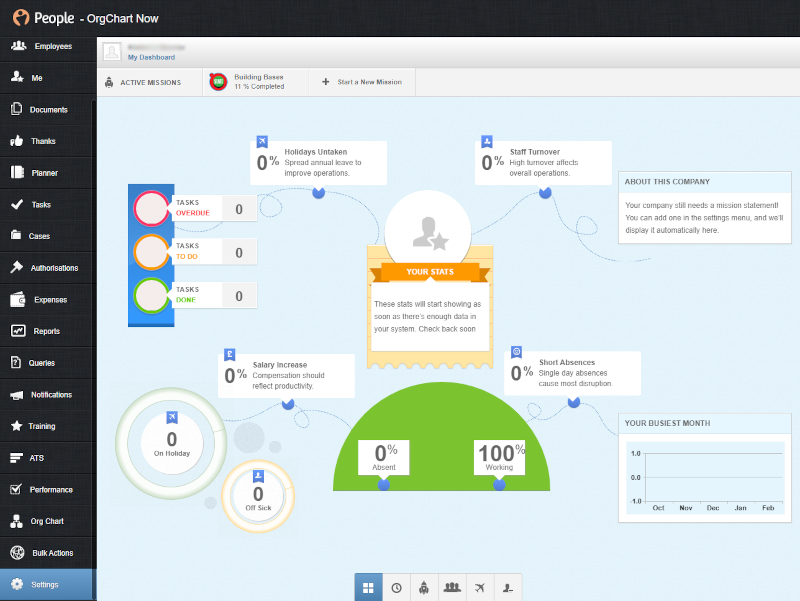
Click on Settings at the bottom of the left side panel.
-
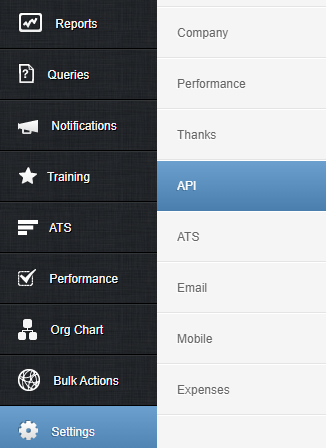
Select API from the Settings list.
-
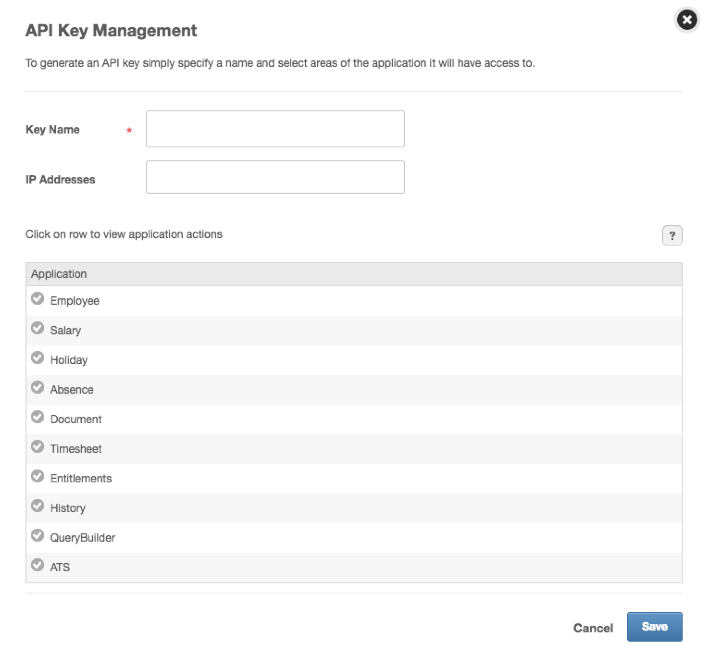
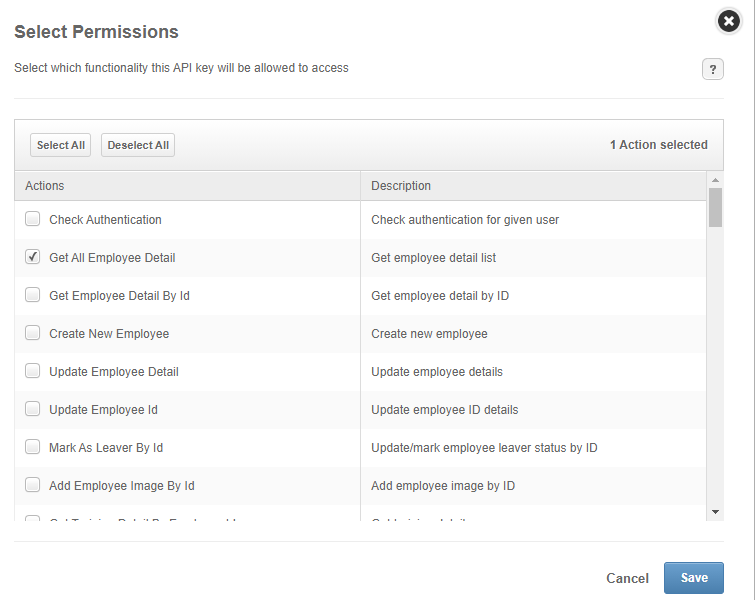
Click on the + icon in the top left of the API Key Management table. The following screen is displayed:
-
Enter a Name for the API Key in the Key Name text box.
-
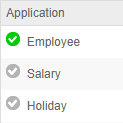
Click on the Employee option from the Application list. Optionally, you can select additional items from the list to import other data into OrgChart.
-
Check the Get All Employee Detail checkbox (in the Select Permissions section). Additional permissions may need to be given depending on the data you would like to access in OrgChart.
-
Click Save.
-
Click on the
 icon (in the right-most column of the API Key Management table) to copy the new API Key to your clipboard.
PeopleHR Custom Fields
The following section provides step-by-step instructions for configuring custom fields within PeopleHR, and pulling PeopleHR custom fields into OrgChart.
CONFIGURING CUSTOM FIELDS
-
Log in to PeopleHR.
-
Click on the Settings tab (at the bottom of the right side menu), and then click the Company option.
-
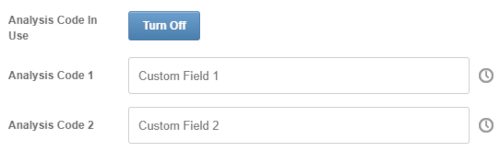
Click the Turn On button located to the right of the Analysis Code in Use field. Two custom fields are displayed.
-
Enter a name for each custom field.
-
Click on the Employee tab from the right side menu.
-
Select an employee.
-
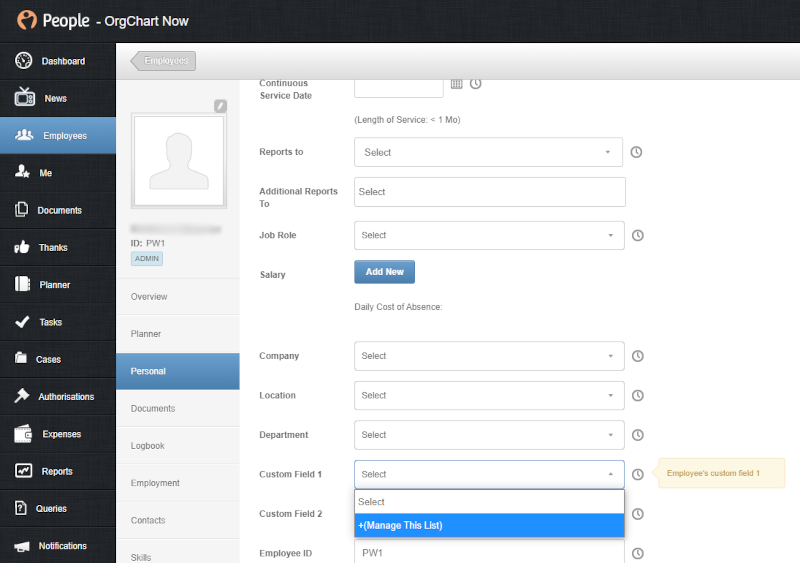
Click on the Personal tab in the employee profile menu.
-
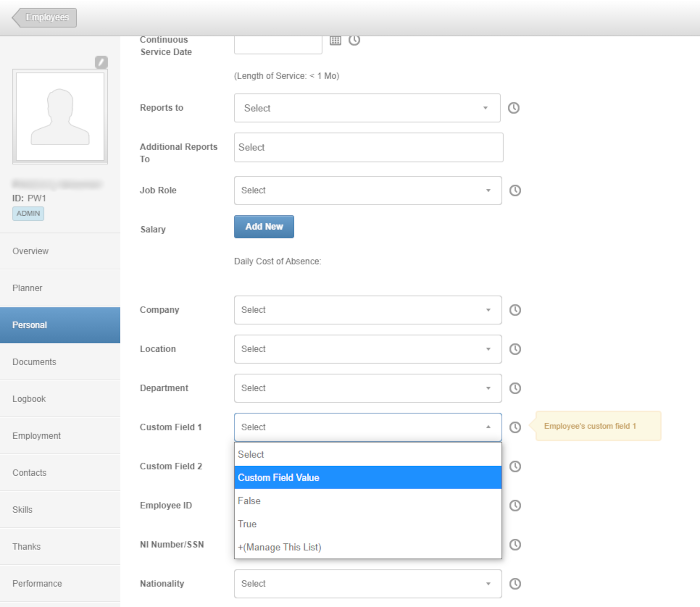
Click on the Custom Field dropdown menu, and then select the +(Manage This List) option. The Custom Field List Manager appears.
-
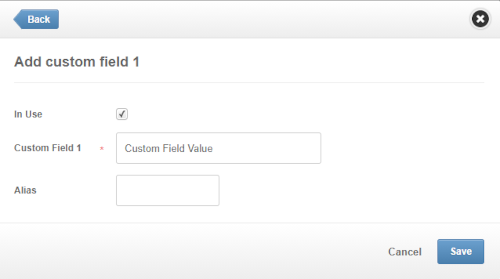
Click on the + button, and then enter a field value in the Custom Field textbox.
-
Check the In Use checkbox., and then click on Save.
-
Close the Custom Field List Manager.
-
Click on the Custom Field dropdown menu, and then select a field value (entered in step 9) from the dropdown menu.
-
Assign values to each employee for the custom field(s) you wish to pull into OrgChart.
-
Include the custom fields in the query created for OrgChart. Contact PeopleHR Support for assistance on adding these custom fields to your query.
Pulling Custom Fields
1. Click on the Settings button in the bottom right corner, and then select the Chart Settings option from the list.
2. The Data sources panel is displayed. Under Main data sources, click on the gear icon besides the PeopleHr connector.
4. Enter the name of the query that includes your custom field data into the Query Name text box.
5. Click on Save, and then Refresh.
PeopleHR Connector Setup
1. Click on the Settings button in the bottom right corner, and then select the Chart Settings option from the list.

2. .The Data sources panel is displayed. Under the Main data sources heading click on connector icon and then click on PeopleHR connector.

3. Enter the following information into the corresponding text boxes:
-
API Key - The API Key copied to your clipboard (in step 9 of the PeopleHR Configuration section above)
-
Use Query checkbox - Optionally, check to pull a custom query from PeopleHR. When checked, enter the name of the custom query into the Use Query text box.
Note
Custom queries are required for pulling any custom fields. Reference the PeopleHR Custom Fields section above.
- Query All Fields - Optionally, check to pull all fields from the Employee Details query.
Caution
This option includes pulling sensitive data fields. For a list of the fields that are available in the Employee Details query, please contact your PeopleHR representative.

4. Click Save, and then Refresh.
Comments
0 comments
Please sign in to leave a comment.