
Audience: Administrators
Overview
Namely is a Human Capital Management software used to help mid-sized businesses manage their workforce. OrgChart integrates directly with Namely.
The following article provides information on:
- Frequently asked questions regarding OrgChart's integration with Namely
- Configuring your Namely account for OrgChart integration
- Setting up your Namely integration in OrgChart
Namely Integration FAQ
-
How do I set up my connection to Namely?
Check the following article to set up the Namely connector.
-
Can I pull photos from Namely into my org charts?
Yes.
-
Can I limit the fields that a user is able to pull from Namely?
Yes.
-
What fields can I pull from Namely?
OrgChart can pull most fields associated with an employee profile from Namely. Contact OrgChart Support to confirm whether or not we can pull specific fields.
OrgChart does not pull custom fields from Namely.
-
Can I merge data from a secondary source with Namely data?
Yes.
-
Can I embed org charts (generated from Namely data) into my intranet?
Yes.
-
Can I add open requisitions into my org charts?
Yes. You can append your Namely data with data from your Applicant Tracking System. Reference the Data Integrations page to verify that OrgChart supports your Applicant Tracking System.
-
Can I filter which records are included in my org charts?
Yes.
Configuring your Namely account for OrgChart integration
Before configuring a Namely Connector, Namely recommends creating an API Service User. The permissions associated with that user will determine the permissions of the Personal Access Token required for integration.
The API Service User must be an Administrator in Namely.
-
Sign into Namely as the API Service User.
-
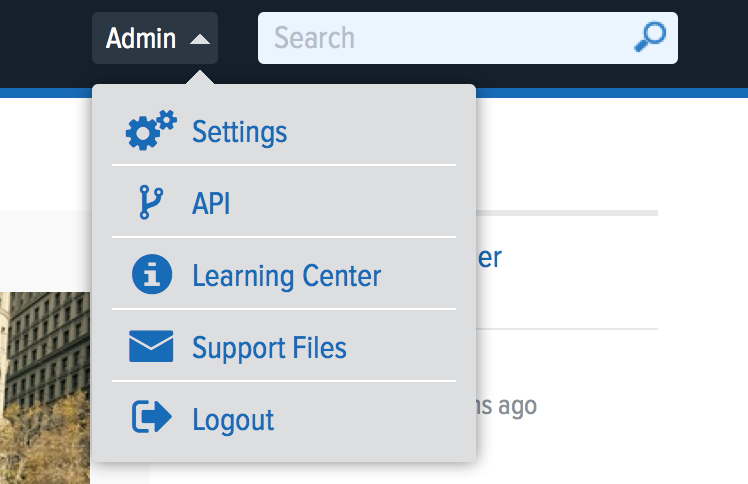
Click on your Namely profile icon, and then select the API option from the dropdown menu. Contact your Namely System Administrator if this option is not available.
-
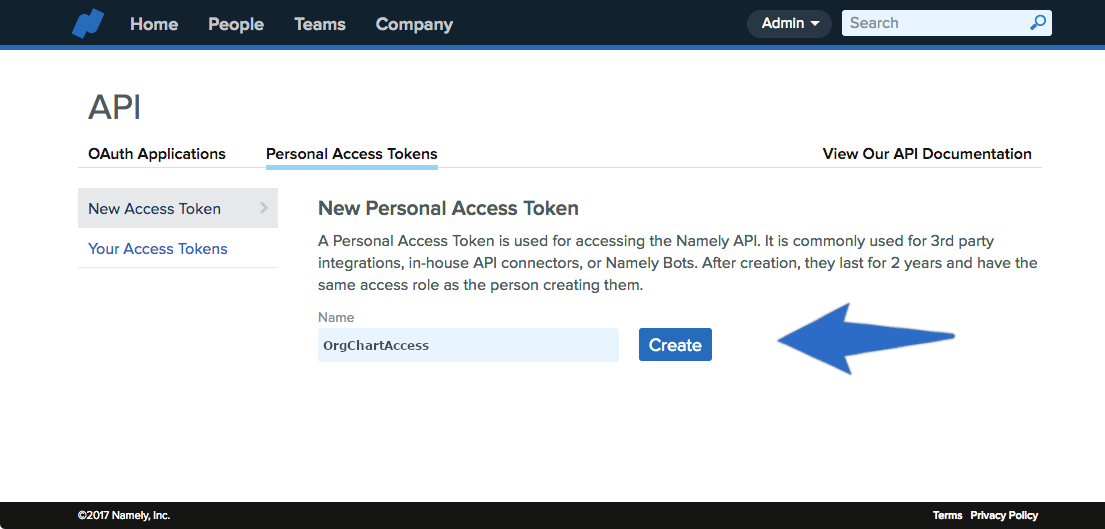
Click on the Personal Access Tokens tab, and then click New Access Token.
-
Enter the name for the token(e.g. OCN_Access) in the Name text box, and then click Create. The token is produced.
-
Copy the newly generated token, and Paste it on a note on your computer. You will need this Personal Access Token to set up the Namely connector.
Setting up a Namely integration in OrgChart
1.Click on the Settings button in the bottom right corner, and then select the Chart Settings option from the list.

2.The Data sources panel is displayed. Under the Main data sources heading click on Click here to select data source option, then click on Namely.

3. Enter the following information into the corresponding text boxes:
-
Subdomain - The first part of the URL used to access your Namely Portal. For example, the subdomain for orgchart.namely.com would be orgchart.
-
API Token - The personal API Token generated while configuring the Namely connector.

4. Click Save, and then Refresh.
Comments
0 comments
Please sign in to leave a comment.