
Audience: Administrators
OVERVIEW
Lever is a comprehensive Applicant Tracking System that provides recruitment data management solutions for HR professionals. OrgChart integrates with Lever as an append data source to allow administrators to display open, on-hold, closed, and draft requisitions on their org charts. The following article provides step-by-step instructions for setting up a Lever connector.
FAQ
-
How do I set up my connection to Lever?
Reference the Lever Connector Setup section below to learn how to set up a connection to Lever.
-
Will Lever integrate with my main data source?
Lever integrates with all of the available main data source connectors.
-
What types of requisitions can OrgChart pull from Lever?
OrgChart can pull all requisition types from Lever, including open, on-hold, closed, and draft requisitions.
LEVER CONFIGURATION
OrgChart integrates directly with Lever to pull talent acquisition data into your org charts. The following article provides step-by-step instructions for configuring your Lever tenant, so that OrgChart can access your data.
Before you begin, contact your Lever System Administrator to ensure that you (or the API service user associated with this integration) have permission to create generate an API key.
Configuring Lever
-
Log in to Lever using the following link: https://hire.lever.co/settings/integrations?tab=api.
-
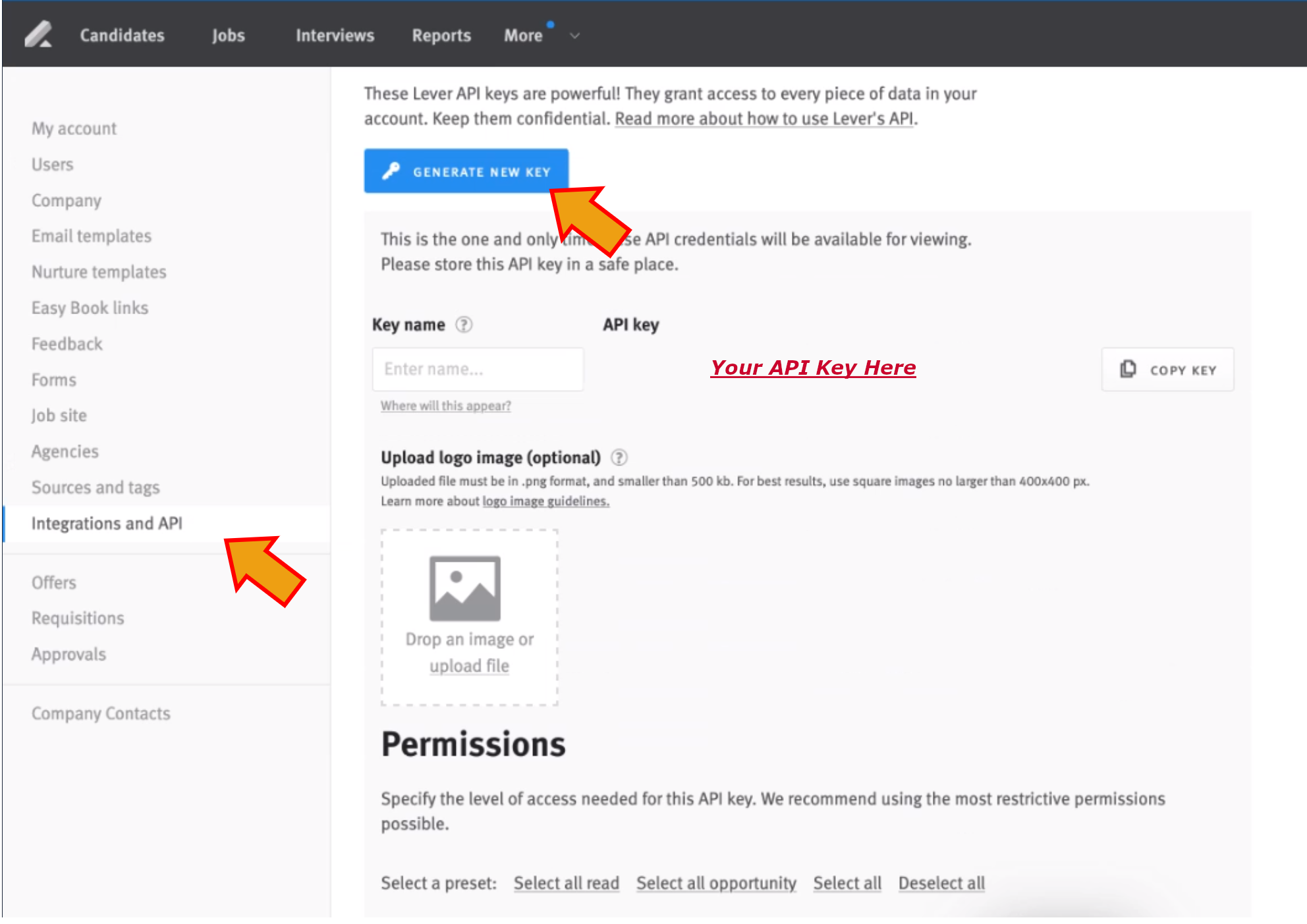
Click on the Integrations and API tab (located in the left hand side panel).
-
Click on the blue Generate New Key icon.
-
Enter a name for the API (i.e. OrgChart Integration), and then copy the API key which appears to the right.
-
Paste the API key in the Notepad on your computer. You will need this key when setting up the Lever Connector in OrgChart.
-
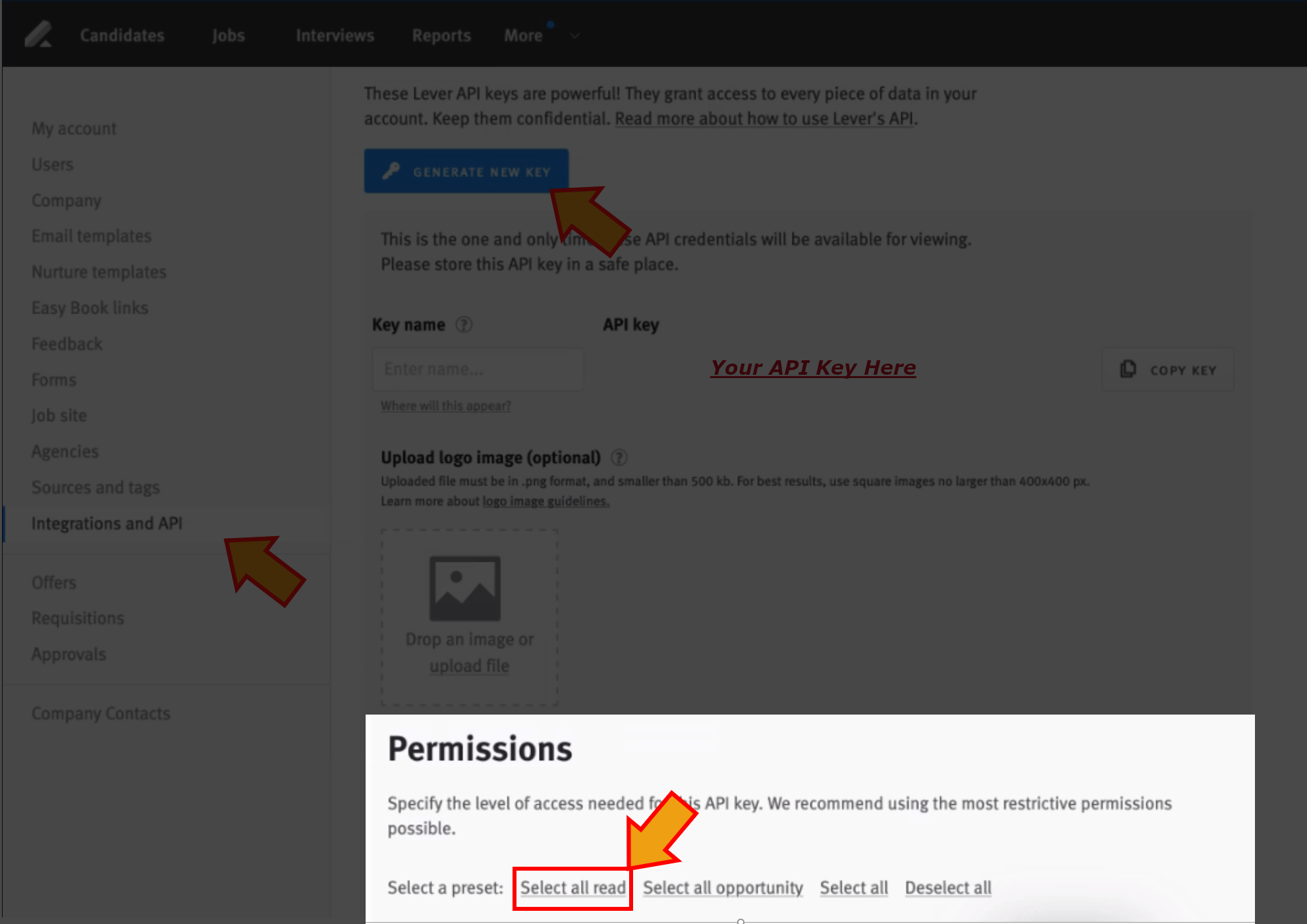
Click on Select all read permissions preset.
-
Click on Save.
SETUP A LEVER CONNECTOR
1. Click on the Settings button in the bottom right corner, and then select the Chart Settings option from the list.

2.The Data sources panel is displayed. Under the Append data sources heading click on Add data sources.

2. Click on the Lever icon

3. Enter the Lever API Token (generated in your Lever profile) into the API Token text box. Contact your Lever System Administrator for more information.
4. Optionally, check the All Requisitions checkbox to pull open, on-hold, closed, and draft requisitions into the chart.
Note
Open requisitions are pulled by default. Do not check the All Requisitions checkbox if you only want to include open requisitions.

5. Select the field mapped to Email (in the Main Data Source) from the Email Field dropdown.
6. Optionally check the Separate boxes for each open job requisition checkbox to display a box for each available opening listed under the same requisition ID. For example, if one open job requisition lists 5 available positions, OrgChart will generate 5 separate open requisition boxes.
7. Click Save, and then Refresh.
Comments
0 comments
Please sign in to leave a comment.