
Audience: Administrators
Overview
BambooHR is an HR management tool used to collect and organize employee records. OrgChart can connect directly to BambooHR.
The following article provides information on:
- Frequently asked questions regarding OrgChart's integration with BambooHR
- Instructions on how to configure your BambooHR account for OrgChart integration
- Instructions on how to set up your BambooHR integration in OrgChart
- BambooHR field compatibility
BambooHR integration FAQ
-
How do I set up my connection to BambooHR?
After configuring your BambooHR account for OrgChart integration, reference the Setting up a BambooHR integration in OrgChart section below.
-
Can I pull photos from BambooHR into my org charts?
Yes. Photos are pulled from BambooHR automatically.
-
What fields can I pull from BambooHR?
Most fields associated with an employee can be pulled. Reference the BambooHR field compatibility section below for a list of available fields.
-
Can I pull fields from custom objects in BambooHR?
Yes. Ensure that the custom table contains (at least) the following fields: Job ID, Job Title, Department, and then request the custom table ALIAS from your BambooHR System Administrator. You will enter the custom table ALIAS into the use table text box while setting up your BambooHR integration in OrgChart.
-
Can I limit the fields that a user is able to pull from BambooHR?
Yes. You can limit access to specific fields by restricting fields via the API service user's access level. Reference the Bamboo HR field compatibility table below, and ensure that (at least) the required fields are always included for API service users.
-
Can I merge data from a secondary source with BambooHR data?
Yes. Reference the OrgChart Data Integrations articles to ensure that OrgChart supports the source you wish to combine with BambooHR.
-
Can I embed org charts (generated from BambooHR data) into my intranet?
Yes. Reference the Web Links article for more information.
Configuring your BambooHR account for OrgChart integration
The following section contains information on how to configure your BambooHR account for OrgChart integration. Configuration occurs in 3 main steps:
- Creating a BambooHR API service user
- Assigning an access level to an API service user
- Generating an API Key
Creating a BambooHR API service user
1. Log in to BambooHR as an administrator.
2. Click on the People tab, and then click on the + New Employee button.

3. Enter an employee number, first name, and last name for the API service user.

4. Scroll down the Contact section and enter a valid email address for the API service user.
Note
You will need to reset this users password and login. You should have access to this email.

5. Click on the Allow Access to Bamboo HR option, and then click on Save.

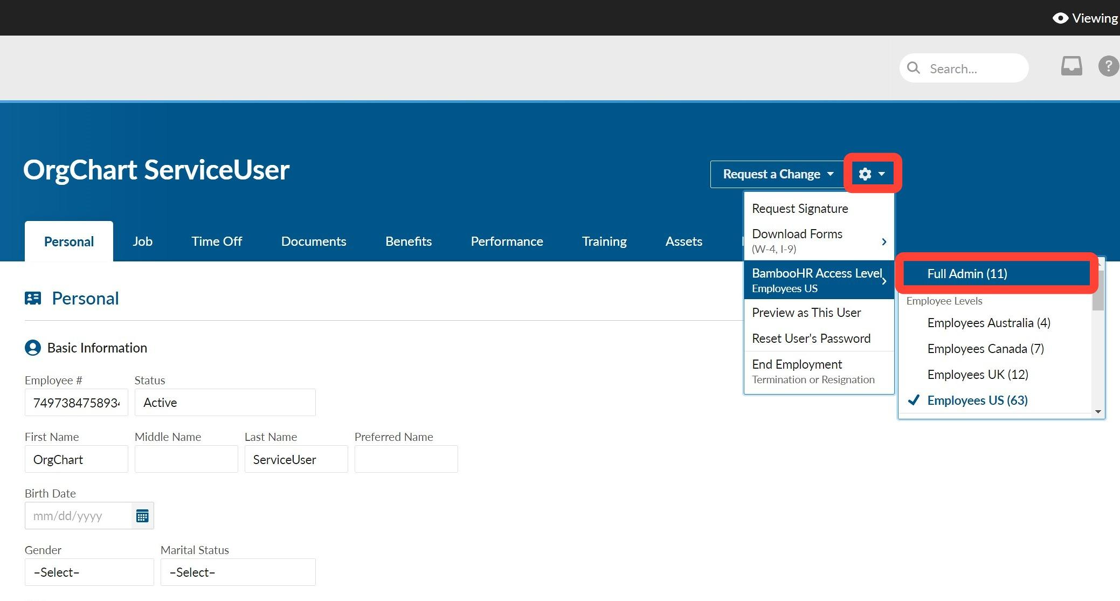
6. The API service user is created. Click on the gear icon, and then assign then click on the Reset User's Password option. Reset the password.

Assigning an access level to an API service user
7. Click on the gear icon again, and then assign them the Full Admin access level.
8. Click on the gear button in the top toolbar, and then select Access Levels under the Settings heading.

9. Click on the + icon to the right of the Levels heading, and then select Custom Access Level from the dropdown menu.

10. Enter a name and (optionally) a description for this access level, and then click on Next Step.

11. Allow the user View Only access to the BambooHR folder in Company Files. Then, click on Next Step.

12. Under the Basic Info section, allow the user access to View (at least) the following fields:
Employee #

13. Click on the Job tab, and then allow View Only access to (at least) the following fields under the Job Information section:

14. Click on Save & Finish.
15. Search for the API Service User, and then adjust their access level by clicking on the gear icon, and then selecting the custom access level.

Generating an API Key
16. Sign in as the API service user, click on the user badge in the top right corner, and then select API Keys.

17. Click on the + Add New Key option.

18. Name the API key, and then click on Generate Key.
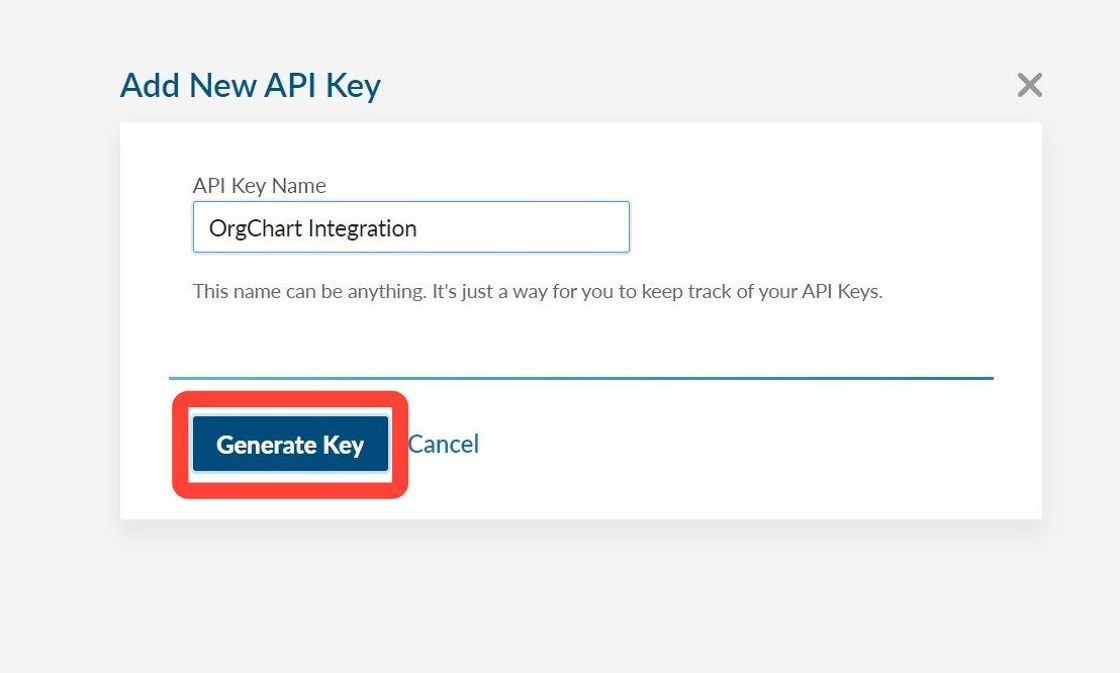
19. Copy the API key and paste it in a separate document. Then, click on Done.

Setting up a BambooHR integration in OrgChart
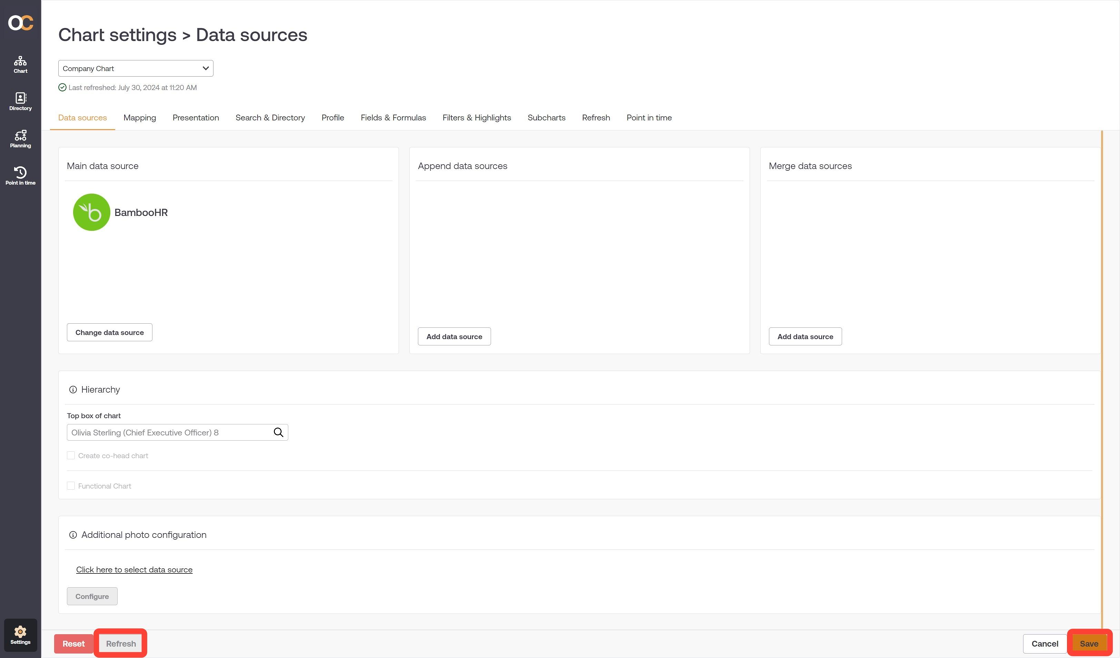
1. Click on the Settings button in the bottom right corner, and then select the Chart Settings option from the list.

2. Click on the Click here to select data source hyperlink, and then select the BambooHR option from the data source menu.

3. Enter the subdomain for your BambooHR account. For example, if you access BambooHR at https://mycompany.bamboohr.com, then the subdomain is mycompany. Then, click on Login.

4. You will be prompted to log in to BambooHR. Login using the username and password for the API Service User that you've created.
5. Optionally, click on the Additional fields dropdown menu, and then select the additional fields you'd like to pull into OrgChart.
Note
Ensure that the API service user has access to view the additional fields, in order to pull them into OrgChart. Custom additional fields will appear below the default additional fields after the first successful refresh of this chart.

6. Click on Save to preserve your changes.
7. Click on Save in the Chart Settings: Data sources panel, and then click on Refresh.
BambooHR field compatibility
The following fields are available to be pulled into OrgChart:
| BambooHR | OrgChart Field | Pull Type |
| Department | Department | Default |
| Display Name | Display Name | Default |
| EEID (Internal, unique ID for identifying employees) | EEID | Default |
| Employee # | Employee # | Default |
| First Name | First Name | Default |
| Job Title | Job Title | Default |
| Last Name | Last Name | Default |
| Photo | Photo | Default |
| Supervisor EID (Internal, used to identify an employee's supervisor) | Supervisor EID | Default |
| Work Email | Work Email | Additional Default |
| Work Phone | Work Phone | Additional Default |
| Mobile Phone | Mobile Phone | Additional Default |
| Gender | Gender | Additional Default |
| Hire Date | Hire Date | Additional Default |
| Pay Rate | Pay Rate | Additional Default |
| Pay Group | Pay Group | Additional Default |
| Pay Group ID | Pay Group ID | Additional Defeault |
| Pay Type | Pay Type | Additional Default |
| Work Phone Extension | Work Phone Extension | Additional Default |
| 401(k) - Status | 401(k) - Status | Additional post first refresh |
| Accrual level Start Date | Accrual level Start Date | Additional post first refresh |
| Address Line 1 | Address Line 1 | Additional post first refresh |
| Address Line 2 | Address Line 2 | Additional post first refresh |
| Allergies | Allergies | Additional post first refresh |
| Annual Amount | Annual Amount | Additional post first refresh |
| Annual Percentage | Annual Percentage | Additional post first refresh |
| Asset Category | Asset Category | Additional post first refresh |
| Asset Description | Asset Description | Additional post first refresh |
| BambooHR Advantage Program | BambooHR Advantage Program | Additional post first refresh |
| Benefit History | Benefit History | Additional post first refresh |
| Bereavement - Policy assignment | Bereavement - Policy assignment | Additional post first refresh |
| Birth date | Birth date | Additional post first refresh |
| Bonus: Amount | Bonus: Amount | Additional post first refresh |
| Bonus: Comment | Bonus: Comment | Additional post first refresh |
| Bonus: Date | Bonus: Date | Additional post first refresh |
| Bonus: Reason | Bonus: Reason | Additional post first refresh |
| CA Health Insurance - Status | CA Health Insurance - Status | Additional post first refresh |
| COVID-19 Related Absence | COVID-19 Related Absence | Additional post first refresh |
| CPR - Completed | CPR - Completed | Additional post first refresh |
| City | City | Additional post first refresh |
| College/Institution | College/Institution | Additional post first refresh |
| Commission | Commission | Additional post first refresh |
| Commission: Amount | Commission: Amount | Additional post first refresh |
| Commission: Comment | Commission: Comment | Additional post first refresh |
| Commission: Date | Commission: Date | Additional post first refresh |
| Comp/In Lieu Time - Policy | Comp/In Lieu Time - Policy | Additional post first refresh |
| Company Handbook | Company Handbook | Additional post first refresh |
| Compensation Change Reason | Compensation Change | Additional post first refresh |
| Compensation comments | Compensation Change | Additional post first refresh |
| Compensation: Date | Compensation: Date | Additional post first refresh |
| Completed - Title | Completed - Title | Additional post first refresh |
| Country | Country | Additional post first refresh |
| Date Assigned | Date Assigned | Additional post first refresh |
| Date Returned | Date Returned | Additional post first refresh |
| Degree | Degree | Additional post first refresh |
| Dental Insurance - Status | Dental Insurance - Status | Additional post first refresh |
| Department | Department | Additional post first refresh |
| Dependent Birth Date | Dependent Birth Date | Additional post first refresh |
| Dependent City | Dependent City | Additional post first refresh |
| Dependent Country | Dependent Country | Additional post first refresh |
| Dependent First Name | Dependent First Name | Additional post first refresh |
| Dependent Full Time Student | Dependent Full Time Student | Additional post first refresh |
| Dependent Gender | Dependent Gender | Additional post first refresh |
| Dependent Home Phone | Dependent Home Phone | Additional post first refresh |
| Dependent Last Name | Dependent Last Name | Additional post first refresh |
| Dependent Middle Name | Dependent Middle Name | Additional post first refresh |
| Dependent Relationship | Dependent Relationship | Additional post first refresh |
| Dependent Dependent SSN | Dependent Dependent SSN | Additional post first refresh |
| Dependent State | Dependent State | Additional post first refresh |
| Dependent Street 1 | Dependent Street 1 | Additional post first refresh |
| Dependent Street 2 | Dependent Street 2 | Additional post first refresh |
| Dependent US Citizen | Dependent US Citizen | Additional post first refresh |
| Dependent ZIP | Dependent ZIP | Additional post first refresh |
| Dietary Restrictions | Dietary Restrictions | Additional post first refresh |
| Disability - Status | Disability - Status | Additional post first refresh |
| Division | Division | Additional post first refresh |
| EEO Job Category | EEO Job Category | Additional post first refresh |
| Eligible for Re-hire | Eligible for Re-hire | Additional post first refresh |
| Emergency Contact City | Emergency Contact City | Additional post first refresh |
| Emergency Contact Country | Emergency Contact Country | Additional post first refresh |
| Emergency Contact Email | Emergency Contact Email | Additional post first refresh |
| Emergency Contact Home Phone | Emergency Contact Home Phone | Additional post first refresh |
| Emergency Contact Mobile Phone | Emergency Contact Mobile Phone | Additional post first refresh |
| Emergency Contact Primary | Emergency Contact Primary | Additional post first refresh |
| Emergency Contact Relationship | Emergency Contact Relationship | Additional post first refresh |
| Emergency Contact State | Emergency Contact State | Additional post first refresh |
| Emergency Contact Street Line 1 | Emergency Contact Street Line 1 | Additional post first refresh |
| Emergency Contact Street Line 2 | Emergency Contact Street Line 2 | Additional post first refresh |
| Emergency Contact Street Line 3 | Emergency Contact Street Line 3 | Additional post first refresh |
| Emergency Contact Work Ext | Emergency Contact Work Ext | Additional post first refresh |
| Emergency Contact Work Phone | Emergency Contact Work Phone | Additional post first refresh |
| Emergency Contact ZIP | Emergency Contact ZIP | Additional post first refresh |
| Emergency Contacts | Emergency Contacts | Additional post first refresh |
| Employee # | Employee # | Additional post first refresh |
| Employee Education: End Date | Employee Education: End Date | Additional post first refresh |
| Employee Education: Start Date | Employee Education: Start Date | Additional post first refresh |
| Employment Status 1 | Employment Status 1 | Additional post first refresh |
| Employment Status 2 | Employment Status 2 | Additional post first refresh |
| Employment Status Date | Employment Status Date | Additional post first refresh |
| Employment Status Comments | Employment Status Comments | Additional post first refresh |
| Equity: # of Equity Granted | Equity: # of Equity Granted | Additional post first refresh |
| Equity: Cliff Months | Equity: Cliff Months | Additional post first refresh |
| Equity: Custom Grant Type Name | Equity: Custom Grant Type Name | Additional post first refresh |
| Equity: Grant Date | Equity: Grant Date | Additional post first refresh |
| Equity: Grant Type | Equity: Grant Type | Additional post first refresh |
| Equity: Strike Price | Equity: Strike Price | Additional post first refresh |
| Equity: Vesting Months | Equity: Vesting Months | Additional post first refresh |
| Equity: Vesting Schedule | Equity: Vesting Schedule | Additional post first refresh |
| Equity: Vesting Start Date | Equity: Vesting Start Date | Additional post first refresh |
| Ethnicity | Ethnicity | Additional post first refresh |
| Expiration | Expiration | Additional post first refresh |
| FMLA - Policy Assigned | FMLA - Policy Assigned | Additional post first refresh |
| Facebook URL | Facebook URL | Additional post first refresh |
| First Aid - Completed | First Aid - Completed | Additional post first refresh |
| GPA | GPA | Additional post first refresh |
| Gender | Gender | Additional post first refresh |
| Getting Started in Bamboo HR - Completed | Getting Started in Bamboo HR - Completed | Additional post first refresh |
| Health Insurance CA - Status | Health Insurance CA - Status | Additional post first refresh |
| Hire Date | Hire Date | Additional post first refresh |
| Home Email | Home Email | Additional post first refresh |
| Home Phone | Home Phone | Additional post first refresh |
| Hours Per Pay Cycle | Hours Per Pay Cycle | Additional post first refresh |
| Instagram URL | Instagram URL | Additional post first refresh |
| Issued | Issued | Additional post first refresh |
| Issuing country | Issuing country | Additional post first refresh |
| Job Information: Date | Job Information: Date | Additional post first refresh |
| Job Location | Job Location | Additional post first refresh |
| Job Title 1 | Job Title 1 | Additional post first refresh |
| Job Title 2 | Job Title 2 | Additional post first refresh |
| Job ID | Job ID | Additional post first refresh |
| Job ID | Job ID | Additional post first refresh |
| Life Insurance - Status | Life Insurance - Status | Additional post first refresh |
| LinkedIn URL | LinkedIn URL | Additional post first refresh |
| Location | Location | Additional post first refresh |
| Major Specialization | Major Specialization | Additional post first refresh |
| Marital Status | Marital Status | Additional post first refresh |
| Middle Name | Middle Name | Additional post first refresh |
| Mobile Phone | Mobile Phone | Additional post first refresh |
| NIN | NIN | Additional post first refresh |
| New Hire Training - Completed | New Hire Training - Completed | Additional post first refresh |
| Nickname | Nickname | Additional post first refresh |
| Note | Note | Additional post first refresh |
| Original Hire Date | Original Hire Date | Additional post first refresh |
| Overtime Rate | Overtime Rate | Additional post first refresh |
| Overtime Status | Overtime Status | Additional post first refresh |
|
Paid per |
Paid per |
Additional post first refresh |
| Pay Period | Pay Period | Additional post first refresh |
| Pay Schedule | Pay Schedule | Additional post first refresh |
| Pinterest URL | Pinterest URL | Additional post first refresh |
| Preferred Name | Preferred Name | Additional post first refresh |
| Regrettable or Non-Regrettable | Regrettable or Non-Regrettable | Additional post first refresh |
| Reporting to | Reporting to | Additional post first refresh |
| Second reports to | Second reports to | Additional post first refresh |
| Secondary language | Secondary language | Additional post first refresh |
| Self-service access | Self-service access | Additional post first refresh |
| Serial # | Serial # | Additional post first refresh |
| Shirt size | Shirt size | Additional post first refresh |
| Sick - Policy Assignment | Sick - Policy Assignment | Additional post first refresh |
| Sick Full-Time policy | Sick Full-Time policy | Additional post first refresh |
| State | State | Additional post first refresh |
| Status | Status | Additional post first refresh |
| Tax File Number | Tax File Number | Additional post first refresh |
| Termination Date | Termination Date | Additional post first refresh |
| Termination Reason | Termination Reason | Additional post first refresh |
| Termination Type | Termination Type | Additional post first refresh |
| Twitter feed | Twitter feed | Additional post first refresh |
| UK Private Medical Insurance (PMI) - Status | UK Private Medical Insurance (PMI) - Status | Additional post first refresh |
| US Health Insurance - FSA Eligible Status | US Health Insurance - FSA Eligible Status | Additional post first refresh |
| US Health Insurance - HSA Eligible Status | US Health Insurance - HSA Eligible Status | Additional post first refresh |
| Unlawful Harassment - Completed | Unlawful Harassment - Completed | Additional post first refresh |
| Vacation - Policy Assigned | Vacation - Policy Assigned | Additional post first refresh |
| Vacation Full-Time policy - Assigned | Vacation Full-Time policy - Assigned | Additional post first refresh |
| Veteran Status | Veteran Status | Additional post first refresh |
| Visa | Visa | Additional post first refresh |
| Visa: Date | Visa: Date | Additional post first refresh |
| Working from home during COVID 19 - Completed | Working from home during COVID 19 - Completed | Additional post first refresh |
| Zip Code | Zip Code | Additional post first refresh |
Note
You can also pull custom additional fields. They will be available in the additional fields dropdown menu after a successful refresh. Ensure that the API service user has access to any of the fields above, or any custom additional fields that you would like to pull.
Comments
0 comments
Please sign in to leave a comment.