
Overview
ADP Vantage is an enterprise-focused HRCM (Human Resource Capital Management) solution, which provides workforce management tools at scale. OrgChart integrates directly with ADP Vantage.
The following article provides detailed information on:
- The fields OrgChart can pull from ADP Vantage
- Setting up an ADP Detailed merge data source to pull fields that require the Additional Detailed pull
Note
To set up a direct integration with ADP Vantage, or for instructions on how to modify your current configuration, please reference the ADP Setup and Configuration article.
ADP Vantage field compatibility
OrgChart can pull the following fields from ADP Vantage:
| ADP Field | OrgChart Field | Pull Type |
| First Name, Middle Name, Last Name | Name | Standard |
| Assignment Job title (internal title) | Title | Standard |
| Assignment Job title (internal title) | Business Title | Standard |
| DID (Auto-generated by ADP) | DID | Standard |
| DID Code (Auto-generated by ADP) | DID Code | Standard |
| Assigned Location Email Address | Standard | |
| Legal First Name | First Name | Standard |
| Legal Last Name | Last Name | Standard |
| Assignment Job Code | Job Code | Standard |
| Primary Location (Long name) | Location | Standard |
| Associated OID | PersonID | Standard |
| Business Land Line Area Code Phone Number | Phone | Standard |
| Report to Employee ID | Supervisor Worker ID | Standard |
| Reports to Associate OID | SupervisorID | Standard |
| Assigned Location | Work Location | Standard |
|
Assigned Location - Location code (non-primary) |
Work Location ID | Standard |
| Employee ID | Worker ID | Standard |
| Assignment Term Code | Assignment Code | Additional |
| Assignment Location City Name | City Name | Additional |
| Assigned Location Country Code | Country Code | Additional |
| Country Subdivision Level 1 (State Code) | Country Subdivision Level 1 | Additional |
| Country Subdivision Level 2 (County Code) | Country Subdivision Level 2 | Additional |
| Currency | Currency | Additional |
| Payroll File Number | File # | Additional |
| FLSA | FLSA | Additional |
| Work Level Code (Labor Status) | FTE | Additional |
| Gender Code / Gender Short Name/ Gender Long Name | Gender | Additional |
| "Primary" Cost Center Code | Home Cost Number | Additional |
| "Primary" Cost Center Short Name/ "Primary" Cost Center Long Name | Home Department Name | Additional |
| Assignment Job Code Short Name/ Assignment Job Code Long Name | Long Title | Additional |
| Management Position | Management Position | Additional |
| Personal Mobile | Mobile | Additional |
| Preferred First Name, Preferred Last Name | Nickname | Additional |
| Pay Group Code | Payroll Group Code | Additional |
| Assignment Position ID (Position Code) | Position ID | Additional |
| Legal Address Postal/Zip Code (Physical Address) | Postal Code | Additional |
| Preferred First Name | Preferred First Name | Additional |
| Assignment Status Effective Date | Seniority Date | Additional |
| Status Code | Status | Additional |
| Assigned Location Country Code | Worker Country Code | Additional |
| Associate Worker Type Code | Worker Code | Additional |
| Associate Worker Type Long Name | Worker Type | Additional |
| DEPTID (Auto-generated by ADP) | DEPTID | Additional Detailed |
| DEPTID Code (Auto-generated by ADP) | DEPTID Code | Additional Detailed |
| Pay Grade | Pay Grade | Additional Detailed |
| Pay Grade Code | Pay Grade Code | Additional Detailed |
| Officer Type Code | Officer Type Code | Additional Detailed |
| Officer Type Description | Officer Type Name | Additional Detailed |
| Officer/Owner | Officer Type | Additional Detailed |
| PAYDEPTID (Auto-generated by ADP) | PAYDEPTID | Additional Detailed |
| PAYDEPTID Code (Auto-generated by ADP) | PAYDEPTID Code | Additional Detailed |
| Assignment Hire Date | Hire Date | Additional Detailed |
| Ethnicity Long Name | Ethnicity | Additional Detailed |
| Calculated based on Assignment Hire Date and Current Date | Years of Service | Additional Detailed |
Important
Fields that require an Additional Detailed pull can only be accessed through the ADP Detailed merge data. For more information, reference the Setting Up an ADP Detailed Data Pull section of this article.
Note
Certain sensitive personal information may be masked in the ADP Marketplace Data Connector Application Profile. If you are having trouble pulling certain fields into OrgChart, verify that your ADP Permissions are configured correctly with your ADP Rep.
OrgChart does not pull salary information from ADP Vantage.
Setting up an ADP Detailed Merge
In order to pull fields that require an 'Additional Detailed' pull (listed in the ADP Enterprise Field Compatibility table above), an OrgChart admin must add the ADP Detailed merge data source to their chart configuration. The following section provides step-by-step instructions for setting up an ADP Detailed merge in your account.
1. Click on the Settings button in the bottom right corner, and then select the Chart Settings option from the list.

2. Click on the Add data source button under the Merge data sources heading.

3. Select ADP Detailed from the list of merge data sources

4. The ADP detailed configuration panel is displayed. Click on the Additional fields drop down menu, and then toggle the fields ON that you'd like to pull into OrgChart.
Note
The list of additional fields shown here will contain fields that do not require the ADP Detailed merge data source in order to be pulled into OrgChart. Please reference the table above, so that you select only the necessary fields.

5. Similarly, click on the Custom fields menu to toggle custom fields ON that you'd like to pull into OrgChart.
Note: Custom fields are only available after the first successful refresh of your chart. Please refresh your chart at least once before attempting to pull custom fields.

6. Click on the Load field mapping button.
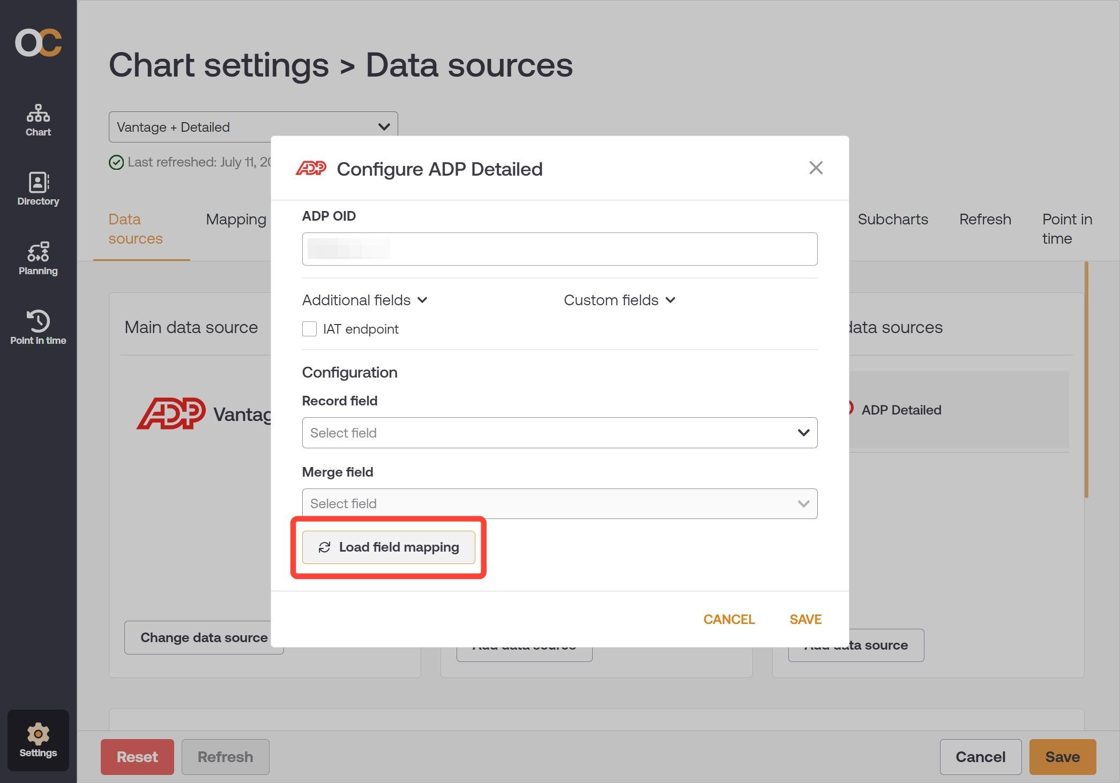
7. Click on the Record field option, and then select the PersonID option from the dropdown menu.

8. Click on the Merge field option, and then select the PersonID option from the dropdown menu.

9. Click on the Save button to preserve your changes.

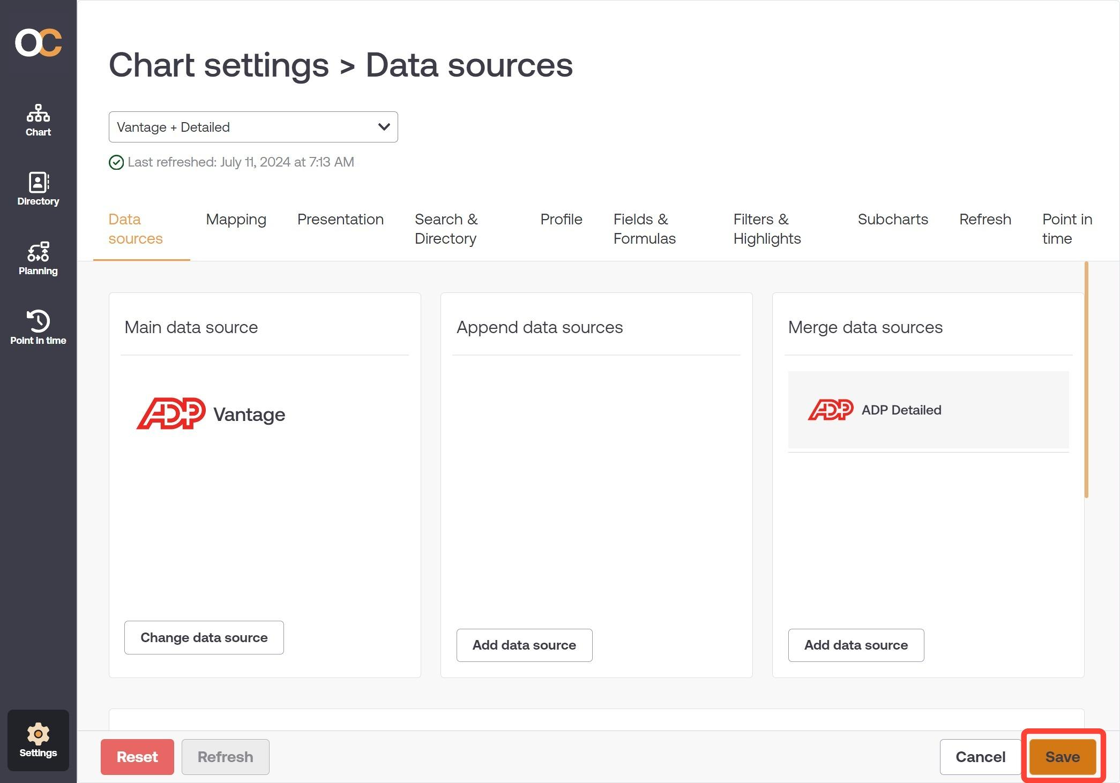
10. Once you've updated your ADP detailed merge configuration, click on the Save option in the Chart Settings: Data source panel. The fields will be pulled into OrgChart after your next scheduled refresh.
Comments
0 comments
Please sign in to leave a comment.