
Audience: Administrators
Overview
Access groups allow administrators to control access privileges to source data and application features. Access groups are assigned to users in the Account settings: Manage users panel.
Note
The number of access groups that you are able to create depends on your OrgChart edition.
Accessing Access Groups
1. Click on the Settings button in the bottom right corner, and then select the Account Settings option from the list.
Access group options
The following options are available in the access groups tab.
| + Add access group button | Add a new access group |
| Hover over an access group, and then click this icon to edit it. | |
| Hover over an access group, and then click on this icon to make it a default access group. The default access group is automatically assigned to new users. | |
| Hover over an access group, and then click on this icon to duplicate the access group. | |
| Hover over an access group, and then click n this icon to delete an access group. Note: The General access group cannot be deleted. |
Configuring access groups
The access group configuration panel allows Administrators to set the application functionality and access privileges for the selected access group.
Application security
The following application security options are available:
| Export to Excel | Allow users to export chart data to Excel. |
| Edit views and box styles | Check to allow users to ability to modify and create views and box styles. Note: If this access group assigns a Read Only role, this option will no longer be available. |
| Private folder access | Check to generate and allow access to user-assigned private folders in the File Manager. Note: This option is only available for users assigned a Read/Write or Admin seat role. |
| Point in Time | Check to allow access to the Point in Time module. |
| Interactive filtering | Check to allow users the ability to create interactive filters. |
| Row level security | Check to enable row level security. Click on the Row Level Security dropdown menu, and then select a Row Level Security Profile from the list. |
| Role assignment | Check to assign users a role. Note: Users that are assigned an access group with a role assignment cannot have their role assignment updated manually. |
| UI profile | Check to assign users a custom UI Profile. |
Allowed folders
Click on the Allowed folders dropdown to select folders that the user has access to.
Hover over a folder that has been added to the list, and choose from the following additional options:
| The folder is currently locked. Users with access to locked folders can only open and download content. Hover over the name of the folder, and then click on this icon to unlock it. |
|
| The folder is currently unlocked. Users with access to unlocked folders can add and manage the content with them. Hover over the name of the folder, and then click on this icon to lock it. |
|
| Hover over the name of the folder, and then click on this icon to remove the folder from the list of allowed folders. |
While in the file manager, the user will know if the folder they are in is locked based on the symbol shown over the folder. In the example below, the user has access to modify content in the Charts and Backgrounds folders, but not in the Data or Photos folders.
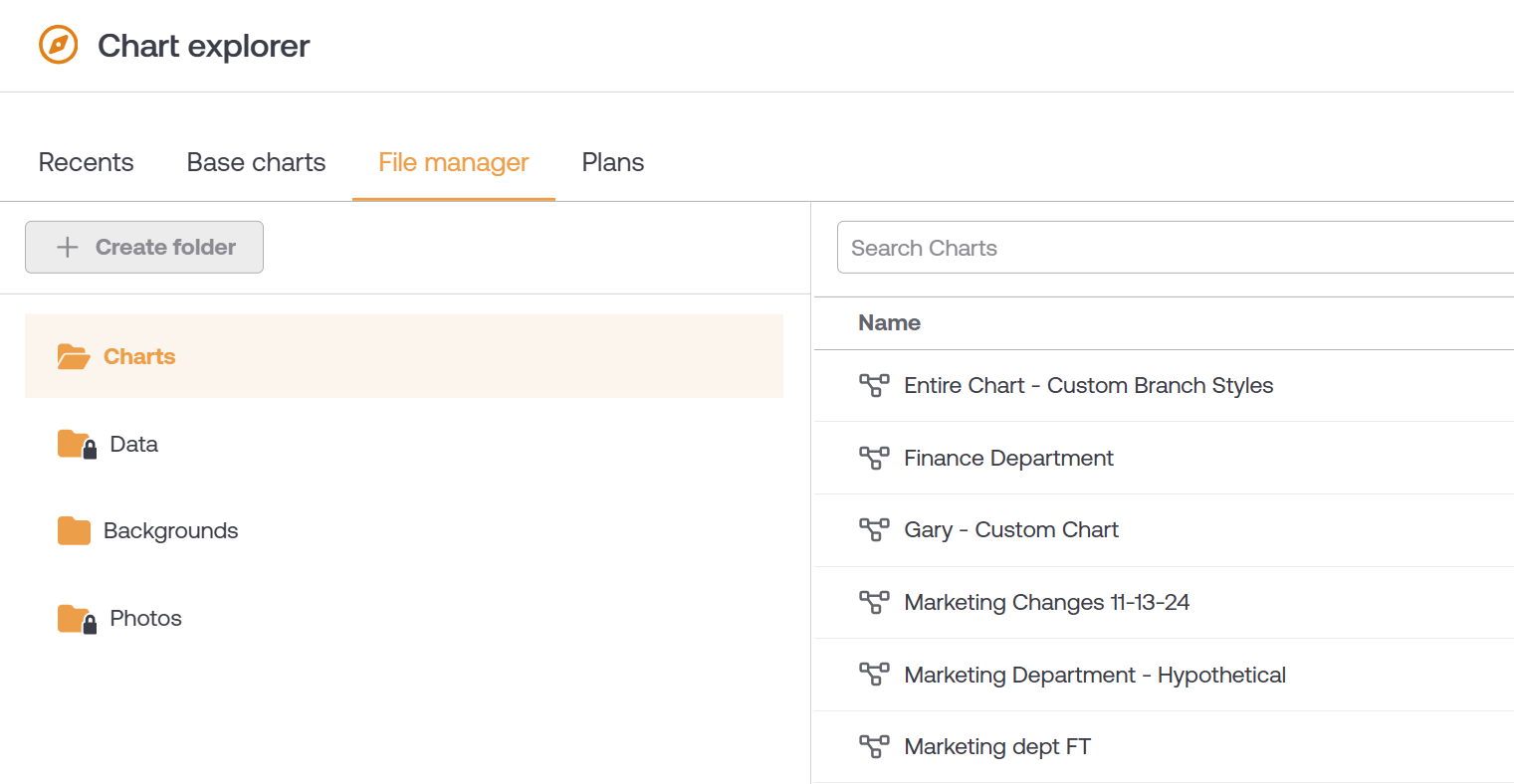
Chart security
Restrict access to certain base charts, apply branch level security to certain base charts, and manage the available views and legacy filters & highlights for each base chart.
| Chart dropdown | Click to select the base chart for which you would like to configure the below access settings. |
| Chart access | Check to allow users access to the base chart selected in the chart dropdown menu. |
| Branch level security | Check to assign the user a branch level security profile for the base chart selected in the chart dropdown menu. |
| Allowed views dropdown | Curate the views that will be available to users when using the base chart selected in the chart dropdown menu. |
| Allowed filters dropdown | Curate the legacy filters that will be available to users when using the base chart selected in the chart dropdown menu. |
| Allowed highlights dropdown | Curate the legacy highlights that will be available to users when using the base chart selected in the chart dropdown menu. |
Comments
0 comments
Please sign in to leave a comment.